 nessie
Software development with a CTO agent and your own computers
An agent writes the tickets and builds them on your computers with Claude Code or Codex, and you answer every coding session from Dev.

Software teams lose whole days to the space between a plan and working code: turning the plan into tickets, setting up each task, and waiting on a coding assistant that stopped two hours ago to ask one question nobody saw. In Nessie, an agent you call CTO writes the tickets, works them on your own computers with Claude Code or Codex, and every question it asks reaches you wherever you are.
- PlanYouYou describe the work.
- TicketsCTOThe CTO writes them on the board.
- SessionCTOClaude Code or Codex works on your computer.
- ApprovalYouYou answer its questions from Dev.
- ReviewYouYou check the result.
The CTO turns a plan into tickets
Tell the CTO what you want built, in its conversation or the project channel. It asks what it needs to know, then writes the tickets on your project board — descriptions, checklists, labels and the right column — for you to read before anything starts. Given the project operator grant, it also sets up new boards, columns and ticket workflows with you, with exactly your rights and no more.
Tickets go to your own machines
Work starts when you say so. Assign a ticket to the CTO, or move it into the column its workflow picks up from, and it opens Claude Code, Codex or another installed tool on one of the computers it may use: the build Mac in the office, a Linux box, your own laptop. It works in your repository with that computer’s tools and sign-ins, follows the workflow Project Manager wrote with you, and moves the ticket on when it is done.
- Plan. You describe the work; the CTO writes the tickets.
- Assign. You assign a ticket, or drag it into the pickup column.
- Build. The CTO opens a coding session on a computer it may use.
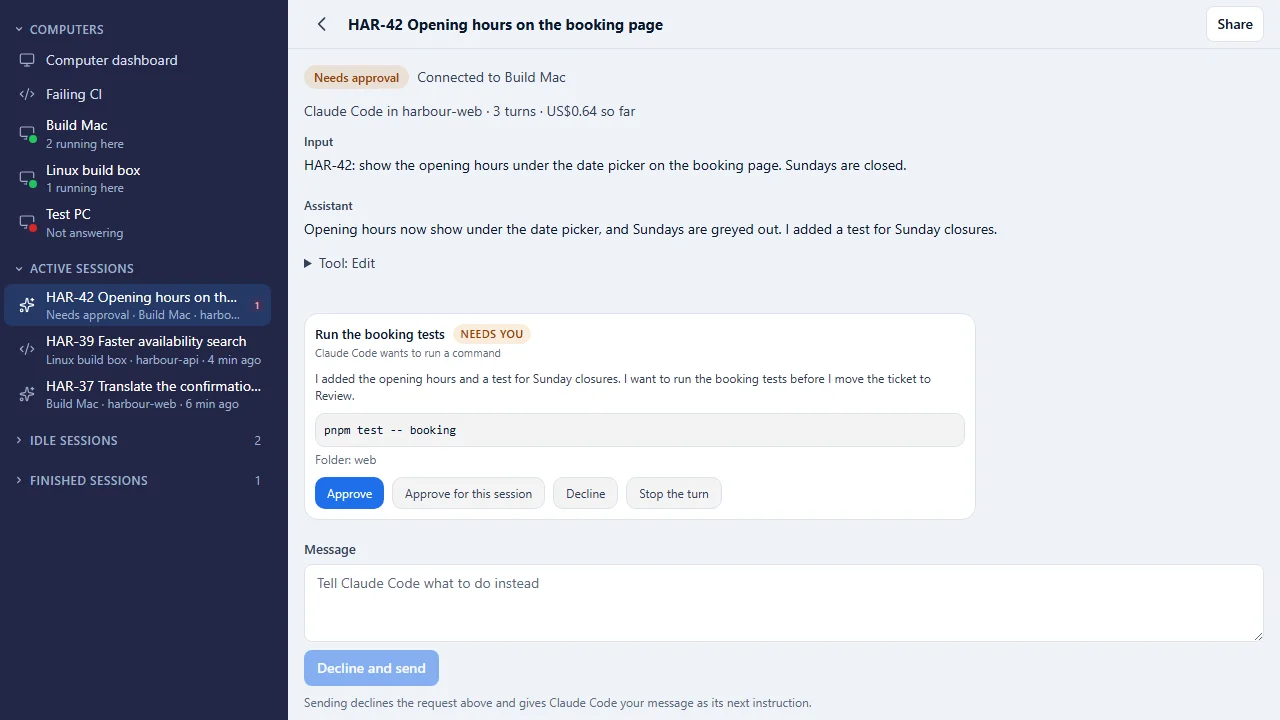
- Answer. It asks before it runs a command or changes files; you approve from Dev.
- Review. The ticket moves to Review, and you check the result.
Every session, live, and you answer it
Dev is the window onto all of it. It lists every coding session on the computers you can reach, with the ones waiting for you first. Open one to see the conversation, the commands and the changes as they happen. When Claude Code wants to run a command, change files, ask a question or needs an API key, the card is right there: approve it, decline it, answer it, or type what it should do instead. A key you paste goes straight to the computer and never into the conversation. You get a notice when a session needs you, finishes or fails, on your desktop or your phone.
Nessie Computer: your machine, your rules
Nessie Computer is the small app that turns a Mac, PC or Linux machine into one the CTO can work on. It connects out to Nessie, so nothing reaches into your network, and everything it allows is decided on the computer itself.
- You choose what it may touch. Folders, programs and websites are set on the computer. Claude Code and Codex may run straight away; any other program asks you first.
- You choose who may use it. Keep it to yourself, name people, share it with a project, or let the whole team use it. Switch each agent on or off.
- You can stop it at any moment. Pause it on the computer, or turn it off in Nessie, and agents start nothing new there.
- Sessions you started yourself show up too. Claude Code and Codex conversations already open on the computer appear in Dev, and agents can read them and message them if you allow it.
What works today, and what is coming
Today: the CTO writing and working tickets, ticket workflows set up with Project Manager, coding sessions on Mac, Windows and Linux computers, answering approvals, questions and secrets, sharing computers, and pausing them. Each session can be watched and answered from a computer’s page in Admin › Computers.
Coming: Dev as its own section in the sidebar is reaching teams in stages, and is not yet in everyone’s account. Until it reaches yours, the same session page opens from Admin › Computers. The CTO is an agent you create and describe yourself; there is no ready-made one yet.
Get started
Install Nessie Computer on the machine the work should run on, create your CTO, and set up your board’s workflow. The development guide walks through every step, and Set up Nessie Computer covers the install.