 nessie
Contacts and the CRM
Add and import contacts, keep lists, and work on the records of the people and businesses you serve.
What it is for
The CRM is your team's record of the people and businesses you work with: their details, their lifecycle stage, the conversations you had and what you promised to do next. Everyone who writes to a channel becomes a contact, so the record fills itself as customers write. Agents read and update the same records, as the person they work for.
Where to find it
- Clients › Contacts › People lists everyone. Open the row to show each lifecycle stage on its own.
- Under Contacts you also find Not in your CRM yet, Contact forms, your Lists and, when there are any, Merge suggestions.
- Clients › Businesses has All for companies and Locations for their shops, offices and sites.
- In a conversation, the customer's details beside it have Open person.
Before you start
- Your team's CRM is DeepCRM, linked to your team automatically. If a page says customer records are not set up, a team owner or admin presses Check CRM connection, which opens the DeepCRM app page.
Add contacts
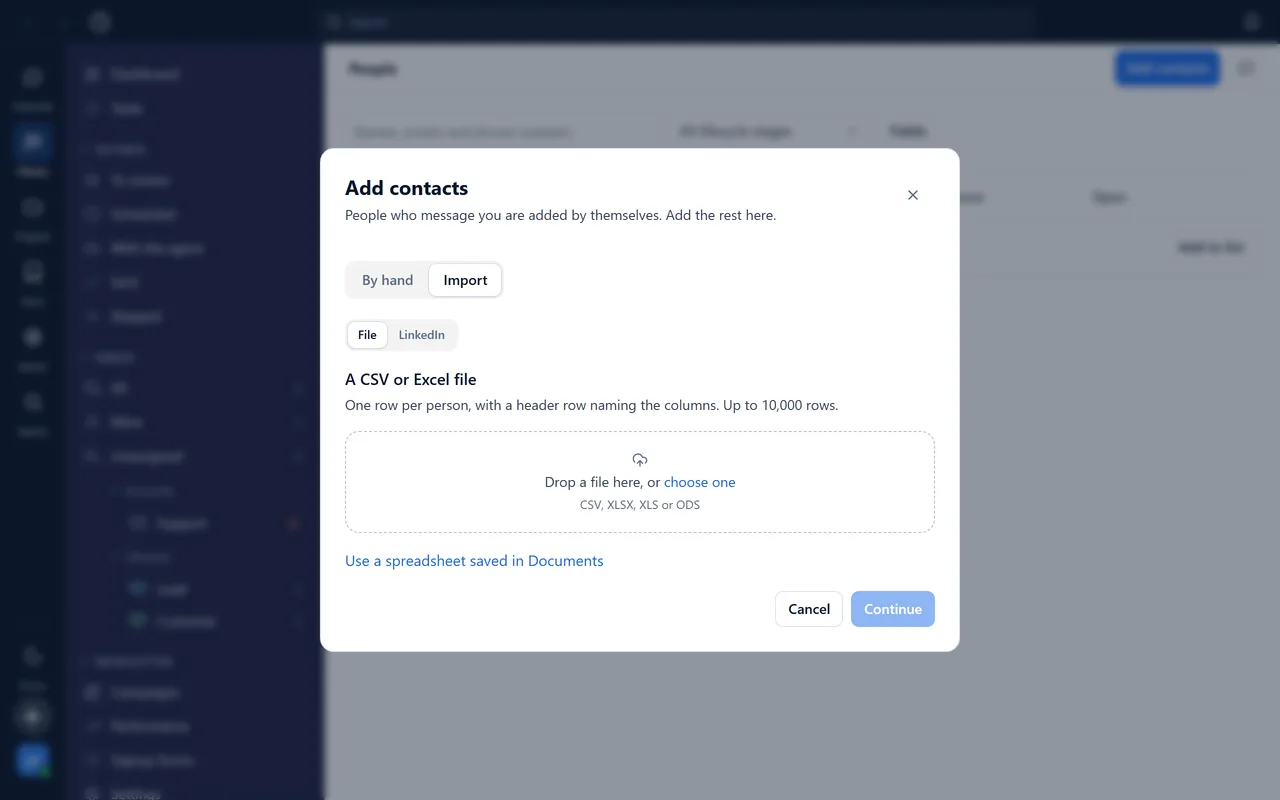
People who write to one of your channels are added by themselves. To add the rest, press + beside Contacts and choose Add contacts.
- Under How, choose By hand, Import or Paste text.
- For an import, choose where from: File takes a CSV or Excel file with one row per person and a header row; LinkedIn takes the Connections file from LinkedIn's data download, and the dialog shows how to get it. Where your Nessie offers them, you can also read a Mailchimp audience, or paste any text with people in it and press Find contacts.
- Optionally put everyone into a list under Add to list.
- Check who was found and untick anyone you do not want. Nobody is messaged, and someone who is already a contact is not added twice.
- Press Add … contacts, then Done.
Group people in lists
A list is a named group of contacts for one purpose, such as workshop guests or a call sheet. A contact can be in several lists, and everyone in your team sees them. Press + beside Contacts › New list, give it a Name and press Create list. Add people with Add to list on their rows.
A list's page is where you start a newsletter or an outreach batch to it. Deleting a list keeps everyone in it as a contact.
Work on a person's record
Open someone from People. Overview shows who they are, their follow-ups, the latest note and their relationships. Timeline is the history: press Add note, or Log interaction for a call, meeting or email. Conversations lists every conversation with them across channels, and Details holds their fields.
Press Add follow-up for something to do later; it appears in Clients › Tasks. To hear when a record changes, press the eye button and choose Watch changes: say which changes count, and whether to message you or tell an agent.

Businesses and locations
Go to Businesses › All and press Add business. A business record has Details, Next steps and Relationships. When your CRM has the corresponding record types set up, People and Locations show its staff and sites. Under Locations, Add location records a shop, office or site.
Open Relationships to view or link existing records. Each Relationship reads as one sentence showing who relates to whom: Contacts → works at → Harbour Bakery. Press Choose from Contacts, choose the person, then check This will link before pressing Link record. Change reopens the search; Cancel closes it without adding a link. Some relationships let you choose a record type first. Unlink removes only the link and keeps the record. Relationship names and record types come from your CRM. Definitions with identical names keep separate links; check the records linked below, and ask a CRM administrator if you are unsure which definition to use. To browse all records of the current type, open Details → Open record directory.
Keep the records tidy
- Not in your CRM yet lists people who wrote to you but have no record. Press Link to attach them to the right person, or Create person.
- Open Merge suggestions under Contacts, or use the card on the Dashboard. Each row compares a contact with another contact or a CRM record. Their pictures sit on either side of the central arrows, with a clear gap and text extending outwards. The reason, such as the same phone, email or name, helps you decide whether they match. Merge opens a review where you choose which contact to keep; Unmerge undoes a merge. Link opens the contact so you can choose its CRM record. The dismiss button removes a suggestion from the open list.
- When a customer mentions a new detail in a message — a new colleague, a phone number — a Found in this message block offers to add it. Press Add, or dismiss it.
- Fields, at the top of People and Businesses, lets a team owner or admin add custom fields such as a membership number or a contract date.
- Open a person or business and choose Delete from the page actions (under More on narrow screens). Confirm to remove it from active views without erasing it. Relationship rules can block deletion or also remove related records and links. Notes are independent records: use Open record on a Timeline entry to delete it separately.
- To recover a person, open People → Deleted. Business and other record directories have Show records → Deleted. Open the record and choose Restore. Reload keeps the selected view. DeepCRM checks your current permission and may refuse a restore that conflicts with current records or links.
- If the CRM asks for confirmation, review it before pressing Confirm. Closing keeps the pending action available in this browser tab after reload. If a response is lost, use Check record; Nessie reads the original record without repeating the mutation. An unknown result remains unknown until it can be checked.
- A CRM request that needs a different administrator’s approval stays blocked here, including after reload. This page cannot resume that approval because its continuation was not retained. Ask an eligible CRM administrator to review the record separately. Check record reads only the current record state; it does not approve the request.
What the words mean
- Contact
- Anyone who wrote to a connected channel, or whom you added.
- People
- Everyone in your CRM, with the emails and numbers they write from.
- Not in your CRM yet
- Someone who wrote to a channel but has no person in your CRM yet.
- Business
- A company you sell to: a prospect or a client.
- Location
- A place a business has: a shop, an office, a site.
- Lifecycle stage
- Where a person is, from prospect to client, in your CRM's own stages.
- Merge suggestions
- Two contacts that may be the same person.
Good to know
- Lists and contacts belong to the selected team. Another team in your organisation does not see them.
- Merging contacts takes a manager of every channel the contacts came through.
- An import never messages anyone. Marketing reaches people only once their consent is confirmed on their record.
- A record watch uses your team's credits to check changes as they arrive.