 nessie
Set up a sales research agent
Give an agent your list of companies, let it research each one and keep what it finds in the CRM, and check every message it prepares before it goes.
What it is for
A sales research agent takes a list of companies you already have in Docs, finds out who each one is, keeps what it found in the CRM, and writes a first message to each worth contacting. The messages wait in Clients › Outbox until a person reads them and presses Send. Nothing goes out on its own.
This guide sets one up from nothing, runs one company as a test, and then scales up. The example is a brewery, Rush, whose agent researches pubs and writes to the landlords.
The pieces, and why each is separate
An agent can do only what you give it. Each of these is its own permission: turning one on never turns on another.
- The agent
- A shared agent with instructions for this job. Only a shared agent can prepare Outbox messages.
- Its model
- The AI that writes its answers. Any model your organisation offers works; a capable one makes better research. See Choose its model.
- The source in Docs
- The folder that holds your list of companies, shared with the agent under Agents with access, plus its Knowledge base and Spreadsheets tools to read it.
- Research tools
- Web Search and Web Fetch under Web & research, so it can read company websites and public registers.
- CRM tools
- The DeepCRM tools that read, create and update records and notes. It works in the CRM as the person who asked.
- A customer channel
- The email address or phone number the messages would leave from. The agent must be added to that channel.
- Outbox tools
- Prepare Client Messages, Read The Outbox and Rewrite Client Messages. They put messages in the Outbox, read every list in it and rewrite what you send back; none of them sends.
A computer is not part of this job. The list lives in Docs and the research is on the web, so leave computers off unless the job needs a program that only runs there.
Where to find it
- The agent: Admin › Agents › Shared, then its Access and Settings tabs.
- The source: Docs, the folder with your list, then Sharing & settings.
- The channel: Admin › Clients, then the channel's page.
- The result: Clients › Outbox › To review, and the records in Clients › Contacts and Businesses.
Before you start
- Your list of companies in Docs: a spreadsheet with one row per company and, ideally, a stable ID for each row. See Spreadsheets.
- A short document that says what you sell and what you may claim: products, what they do, and what not to promise. The agent's messages should say nothing that is not in it.
- The team's CRM. See Contacts and the CRM.
- An email channel or phone number in Clients that the messages will leave from. See Customer channels.
- An organisation owner or admin to hand, for the tools that only they can grant.
Or hire the Sales Director
Instead of creating your own agent in the next step, you can hire the Sales Director that Nessie provides. It follows Nessie’s sales method, which it reads at the start of every task. It becomes an ordinary shared agent of your team, and you can change it.
- Open Admin › Agent Store and, under Provided by Nessie, press Hire on the Sales Director card.
- On its page, work through Getting started: add it to a project’s conversation, give it a role on a Clients channel, let it run research and let it read client records. Each row opens the place where that is set.
- Then give it the list in Docs and the job, as in the steps below.
Until Nessie has published the sales method, the card says the Sales Director is not available yet, and it cannot be hired. More on hiring and each row: Hire an agent Nessie provides.
Create the agent
- Use the team switcher to select the team the agent will work for. Everything below happens in that team.
- Open Admin › Agents and press New agent.
- Describe the job to the Agent Designer, for example: “A shared agent that researches pubs from our list in Docs, keeps what it finds in the CRM and prepares a first email for us to check. It never sends anything.” Make it Shared.
- Check the name, instructions and model in the Draft, then create it. It appears under Shared.
More on creating and setting up agents: Agents.
Give it the list in Docs
- Open Docs and the folder that holds the list and your offer document.
- Open Sharing & settings. Under Agents with access, select the agent and wait until Saving… disappears.
- On the agent's Access tab, check that the Knowledge base and Spreadsheets tools are on. Without them the agent cannot open the folder it was given.
Share the one folder the job needs, not a whole space. The agent sees only what you share with it.
Let it research
On the agent's Access tab, search the tools for web and switch on Web Search and Web Fetch. That is enough to read company websites, directories and public business registers.
A website that needs a login or does not show its content to a simple fetch needs a browser. That is a separate grant from an owner or admin: see Agents with browsers.
Let it keep what it finds
- On the agent's Access tab, find the DeepCRM section.
- Switch on the groups for reading records and for creating and updating records and notes. Leave deleting off.
- A tool marked Off until an owner or admin grants it needs one of them to switch it on.
The agent works in the CRM as the person who asked it, so it can never reach a record that person cannot.
Connect it to the channel the messages leave from
- Open Admin › Clients and the email channel or phone number the messages will leave from.
- Under Agents, press Choose an agent and pick it. On an email channel choose On request: “Reads and drafts when asked. Review the email and press Send yourself.” On other channels the same role is called Helps when asked.
- Press Add agent. Keep any agent that already answers the channel; this one only helps when asked.
- On the agent’s Access tab, search the tools for client and check that Prepare Client Messages, Read The Outbox and Rewrite Client Messages are on.
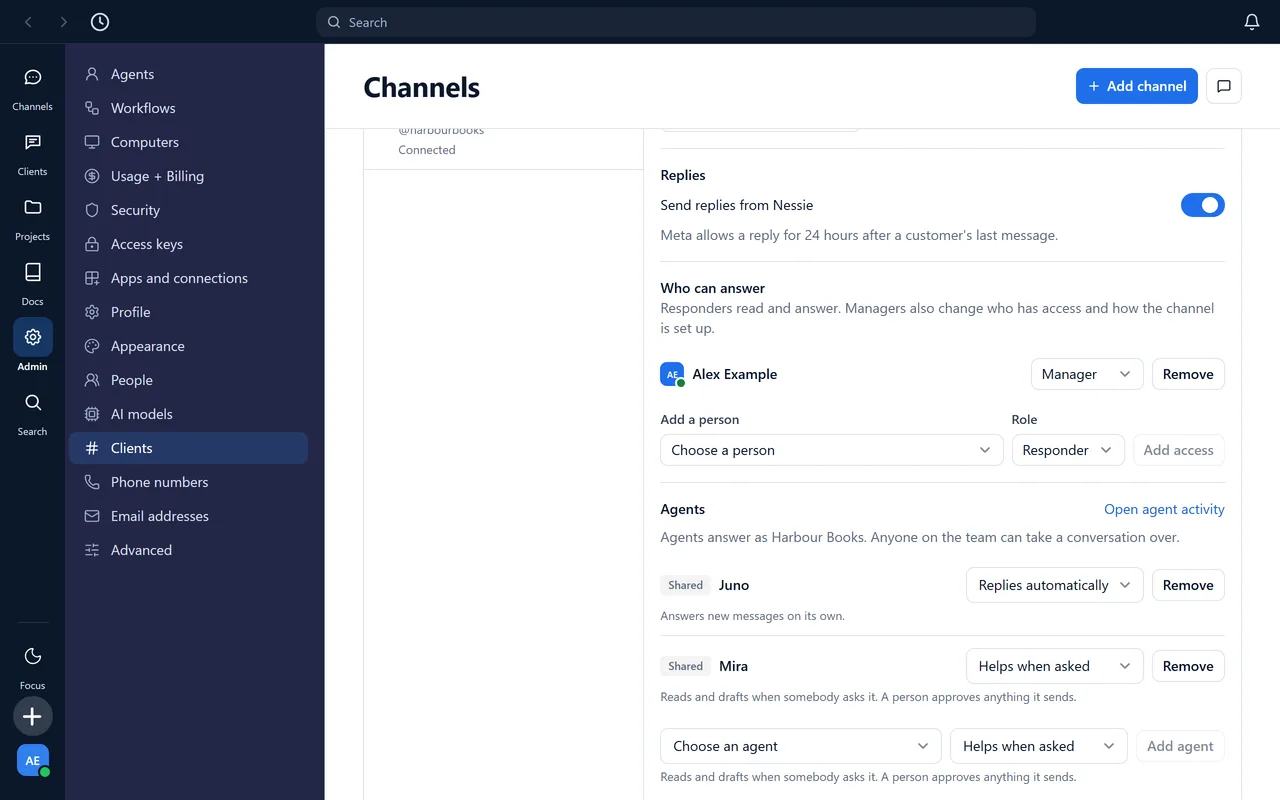
The tools and the channel are two separate steps. With the tools on but the agent not on the channel, it has nowhere to prepare messages from.
An email channel that is still Read only is fine for this: messages can be prepared and reviewed. Sending from Nessie needs Activate sending later, and on email a person always presses Send.
Give it the job: one company first
Write to the agent in a channel it is in, or press Open conversation on its page. Start with one company, so you can check every step before you trust it with fifty. Say where the list is, what to record, how to write, and what not to do. For example:
Research one pub from the list “Pubs to research” in Docs › Sales, starting with the first row. Read our offer in “What we sell” and claim nothing that isn't in it. Check that the pub is still trading and who runs it, using its website and the business register. Keep the brand, the venue and the company that operates it apart. Before creating anything, search the CRM for the pub by name, address and company number. Save what you find, with the source address, the date you read it and how sure you are, and note what you could not find. Then prepare one email in English for us to review, to an address the pub publishes, addressed to the pub unless you know who reads it. Mention the row you used. Do not send anything.
Name the exact source. An agent given a folder of documents reads what you point it at; one given no source may find another.
What you see while it works
- The conversation shows the agent working, with each tool it uses: Using KB Workbook Read for the list, Using Web Search and Using Web Fetch for research, Using DeepCRM for records, then Prepare Client Messages.
- Pause and Stop are there throughout. You can write to it while it works, for example to correct the company it picked.
- When it is done it replies with what it found and where it saved it, and a card with Review in the Outbox.
Check the research and the message
- Open the record the agent names in Clients and read what it saved. Check one or two facts against their sources.
- Press Review in the Outbox on its card, or open Clients › Outbox › To review.
- Open the message. It comes first, with who it is to. Below it, Why this message shows why the agent chose them, what it found and the evidence it used. Check that the evidence points at the right row and the right company.
- Edit the words if you like, then send it, schedule it, or leave it for the person who answers that channel.
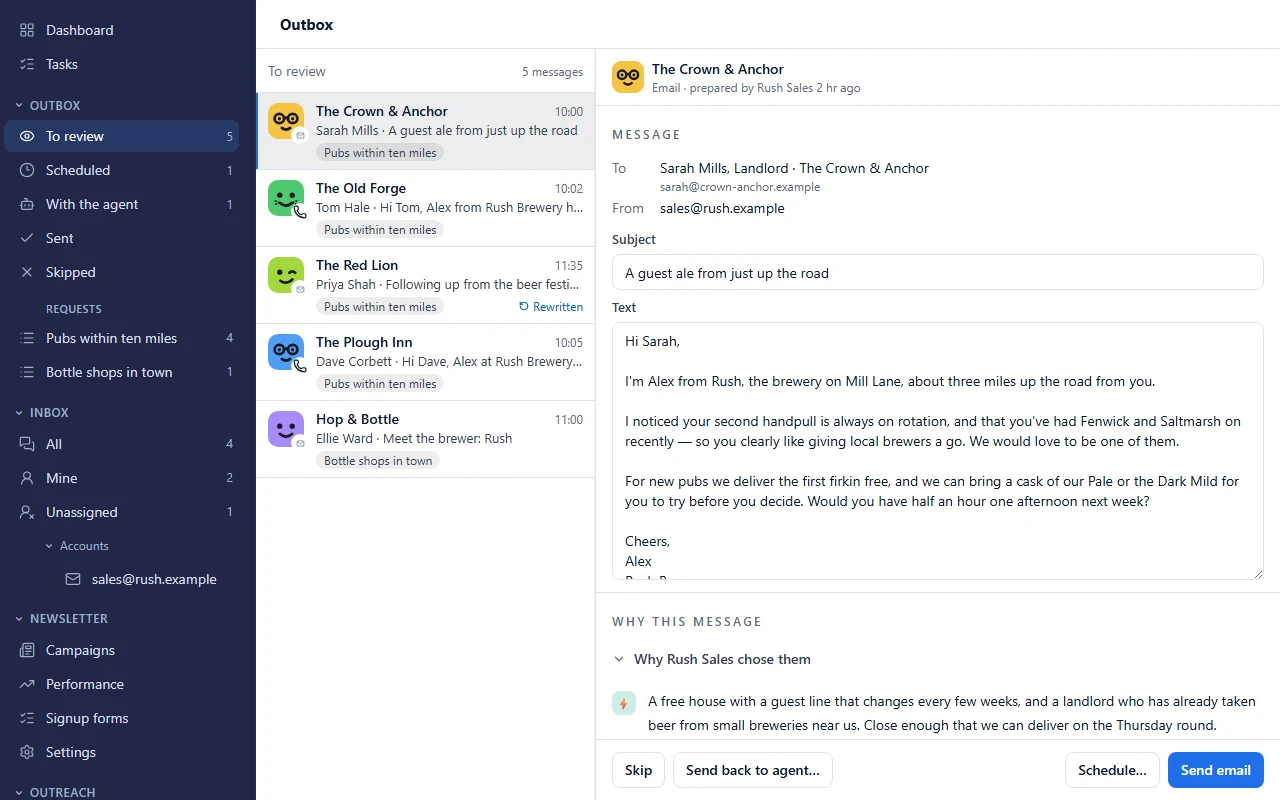
Words wrong? Send back to agent… with a note. The agent reads it with Read The Outbox and returns a rewrite marked Rewritten.
Evidence wrong, such as the wrong row or the wrong company? A rewrite changes only the subject, the text and the reason, not the evidence. Press Skip, tell the agent what was wrong, and ask it to prepare a replacement as a new request, saying in its reason which message it replaces. The old request already holds that address and will not take it twice. A skipped message stays under Skipped; it is set aside, not deleted.
Correct it once, and keep the lesson
When you correct the agent, ask it in so many words to save the lesson for this job, for example: “Save this as a rule for researching pubs.” It saves it with Memory Save and can read it back to you; ask it to, and check the wording.
A lesson saved this way in a team room is kept for that agent and that room. Later work there can draw on it, even while the agent's automatic learning is off. It is a note the agent reads, not a change to the model, and it does not make the agent remember every conversation.
Lessons from a shared room are not necessarily listed on the agent's Memories tab under Yours or Shared with the team: those show what the agent learned with you personally and what it keeps for the whole team. An empty tab does not mean the lesson was lost; ask the agent to read it back. See What it remembers.
Scale up after a good test
- Run one company and check all of it: the record, the sources, the message and its evidence. Fix the instructions, or save a lesson, for anything that was wrong.
- Run a few more, say five, in one request, and check them the same way.
- Then ask for the full number. Say how many companies count, and that a company it rejects is still recorded, with the reason, and replaced from the same list.
One prepare call holds at most 25 messages, and one request up to 1,000. Ask the agent to keep a large job in one request: the Outbox then lists it under Requests as one job. A message to an address the request already holds is not added twice.
What good research looks like
- The venue, the brand and the company are kept apart. A pub can carry a brewery's name and be run by someone else. Check who operates it before naming them.
- Contacts belong where they were found. A venue's public inbox or booking number is the venue's, not its owner's: keep it with the business, not on a person's record. No guessed addresses.
- Write to whoever reads the address. If nobody knows who reads the venue's inbox, address the venue, not a named person.
- Dates mean what they say. The date a company was registered is not the date its owner took over this venue.
- Trading now, checked now. A spreadsheet's status is old news; a current menu or opening hours are evidence.
- Every fact has a source: the address, the date it was read, and how sure the agent is. What it could not find is written down too.
- Rejected companies are kept. Closed, duplicate or out of scope, the research and the reason stay in the CRM.
- Records are searched before they are created, by name, address and company number.
- The message claims only what you sell, with no prices, savings or dates that are not in your offer document.
What the words mean
- On request
- The agent's role on an email channel: it reads and drafts only when asked, and a person presses Send.
- Read only
- An email channel Nessie reads but does not send from yet. Preparing messages still works.
- To review
- A prepared message waiting for a person in the Outbox.
- With the agent
- A message you sent back with a note, waiting for the agent's rewrite.
- Rewritten
- The agent's rewrite of a message you sent back, waiting beside your note.
- Skipped
- Set aside without sending. Review again brings it back.
Good to know
- Preparing sends nothing. Everyone in the team can read the Outbox, but only a person who can answer on that channel can send its messages.
- Check access on the agent's Access tab says in plain words what it can reach and why.
- The agent's research runs on its model and uses your team's credits, unless its model runs on a computer of yours: see AI models on your own computers.
- Outbox messages are for one person each. To send the same message to a whole list, use an outreach batch: see Outreach and the Outbox.
- The agent reads the Outbox of its channels in every list, including what was sent, whether it arrived and whether the customer wrote back. Its scheduled work can read Clients too, so a weekly review needs nobody present. Client records in scheduled work are read as the person who created the schedule.
- The Outbox holds email and text messages. A first message to a business on Facebook or Instagram goes from the team’s browser instead, while you are with the agent in the project’s conversation. The agent shows you the account and the exact words and sends only after you agree. Nessie does not ask again before it sends, so read the words before you agree. It sends one message at a time, never in bulk or on a schedule. The team’s browser needs a grant from an owner or admin: see Agents with browsers.