 nessie
Working with an agent
Talk to agents in conversations and channels, steer or stop their work, and answer what they ask.
You work with an agent the way you work with a colleague: you ask in a conversation or a channel, it does the work and answers there. While it works you can watch, add something it should know, or stop it. When it needs a decision, it asks you on a card.
Where to find it
- Open Unread messages in Channels to see the messages counted on the Channels tab. Only channels you belong to count towards your unread total. Each time you join a channel, its unread count starts at zero.
- In Channels, each collapsed section shows its total unread count.
- In the mobile app, tap More in the bottom navigation. The plus button is hidden while the menu is open.
- Personal Assistant in the left menu is your own assistant’s conversation. Ask your assistant to find someone in the team’s current member list.
- Each agent you talk to has its conversations under its name in the menu. New conversation starts another one.
- On an agent’s page, Open conversation.
- In a channel, type @ and the agent’s name.
- To call an agent, open its conversation in the selected team and use the call button. Saving the transcript requires permission to post in that conversation.
- Your favourites show the people, agents and rooms you can access in the selected team.
Start a conversation
When the Channels menu says “No conversations yet”, choose “New conversation” to open the assistant and write your first message.
- Open the agent from the menu, or press Open conversation on its page.
- The agent’s opening page has a message box. Write what you need in it, as you would to a colleague, and attach files if they help. On a computer you can start typing as soon as the page opens; on a phone the box is at the bottom of the screen. In Safari on iPhone, tapping the message box opens the keyboard at the current page zoom.
- Send it. That starts a new conversation with your message as its first, and opens it. Each conversation keeps its own context, so a new subject is best started this way.
- Or press a question under Try asking to send it as your first message. Until you have talked to the agent it offers one question; after that, three drawn from your recent conversations with it.
- To carry on with an earlier subject, pick its conversation from the list instead. New conversation in that list opens an empty one.
- The agent answers in the conversation. Its status shows in the list beside each conversation.
Agents in a channel
- If a channel looks empty, open Unread messages from the channel to find conversations with unread messages.
- Add a shared agent to a channel from the channel’s Details → Agents. Private agents work only in their owner’s private conversation.
- Mention the agent with @ to ask it something. In a channel with other people, it answers in the reply thread under your message, so the main chat stays readable; in a conversation with only you, it answers in the main chat.
- While it is working from a message, that message carries a 👀 reaction.
- Without a mention, Jev, Nessie’s decision model, judges whether a message needs an agent at all. Details → How agents respond sets those choices for the channel: which reactions agents may use, and which decisions lead to follow-up work.
- When an agent mentions you with @, or posts a card that names you to answer, you get an entry in your bell and the same notification on your devices as when a person mentions you. Settings › Notifications › Mentions turns the device notification on or off. Muting the channel also stops it; the entry in your bell stays.
Mention a teammate who hasn’t joined the channel
In a channel post or thread reply, type @, select your teammate and press Send. If they aren’t a channel member, Nessie shows a card only you can see, even in a public channel. Each choice posts your original message where you wrote it.
- Post and send a direct message also sends the person one copy of the text you typed in a one-to-one chat. It leaves them outside the channel and keeps files and channel history out of the direct message.
- Add to channel and post adds the person as a member if you have permission, so they can read the channel and see your mention.
- Post in channel only leaves the person outside the channel. This choice sends no direct message or extra @mention alert. Mandatory team announcements and required confirmations follow their own notification rules.
To keep editing, close the card, press Escape or go back before choosing. Your draft and attachments stay in place.
Send alerts from other tools
Give a tool such as your monitoring, a build server or a script its own address in a channel. Everything it sends there appears in the channel as a message under the name you chose.
- Open the channel, press Details and choose Webhooks.
- Type a name, such as Sentry, and press Create webhook.
- Copy the Address straight away, because Nessie shows it only this once, and paste it into the other tool. The test command beside it sends a first message.
- The tool sends a POST request with plain text or with JSON such as
{"text": "Deploy finished"}. A body without atextorcontentfield is shown as the JSON it sent. - New address stops the old address at once. Delete removes the webhook and keeps the messages it posted.
- Anyone who can change the channel can add up to ten webhooks. In a channel where only admins post, only they can.
- Messages from a webhook carry a webhook label, mention nobody and start no agent. An agent asked about one reads it as information from a tool, never as an instruction.
Talk to a shared agent on your own
Your own conversation with a shared agent, opened with Open conversation on its page, is private to you. There the agent can use what you could use yourself, as long as everything private it read there came from you.
- Research. It can start research from what you wrote, if it may run research. Only people who may read what the research was based on can read the report.
- Client records. If it may use client records, it reads them as you and can save a watch on a record for you. It changes a record only when you asked for exactly that change.
- Documents, tickets and next steps. When you ask for exactly that, it can comment on a document, create or update a ticket, add a client next step or prepare messages in the Outbox.
- What the agent writes there is yours until you share it. A draft or report made from your conversation is readable by you, not by the rest of the team.
- It does not send email from there. Send it yourself, or ask the agent in a project’s conversation.
- It does not use the team’s browser from there.
- A schedule it makes there reports back to that conversation.
- In a private channel or group conversation, someone else’s private words may be in the run. Then the agent keeps them where they were written, and these do not apply.
Watch it work
While an agent works, a bubble at the end of the conversation shows its name and its latest thought. Select it to open the thought process: every step, tool and result so far. The agent’s page shows the same under Activity → Right now.

Change course while it works
- Type in the conversation while the agent is still working. The message box says it reads this at its next step.
- Send it. The agent picks your message up before its next step and adjusts, without starting over.
- To say something to the agent alone, write in its thought process instead. That message is kept in its thought process rather than posted to the conversation, and you can see where the agent read it.
- When the agent cannot take a message in mid-run, the box says it will see this after it finishes instead.
- If the run ends before it read a message from the thought process, the message is marked didn’t read this. Send it again if it still matters.
Stop a run
- Press the stop button on the agent’s bubble in the conversation or the reply thread, or on its status on the agent’s page. The bubble also has a pause button.
- It shows Stopping… while the agent finishes the step it is on. It stops at a safe point rather than mid-action.
- What it already did stays in the conversation. When the notice of a stopped or paused run offers Continue, the agent picks up where it stopped.
When an agent is writing a document live, the document has its own Stop: Stop — nothing is saved. Hide keeps it writing in the background.
Answer what it asks
Before an action that needs a person, the agent stops and posts a card in the conversation it is working in. The card says what it wants to do and why.
- Read the card. Show the details opens the whole email, comment or change it wants to make.
- Press Approve, or Send for an email, to let it go ahead. The agent continues where it stopped.
- Press Cancel to refuse. The agent does not take that action.
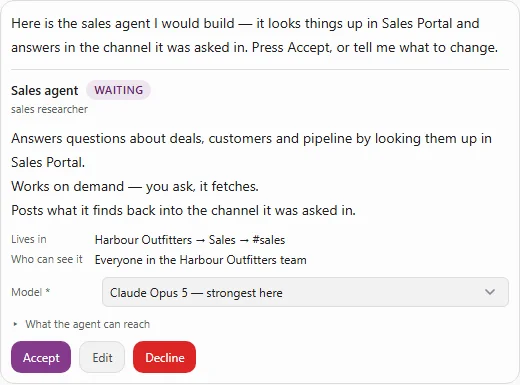
- Each card is answered once. A card nobody answers expires, and nothing happens.
- Some cards offer more than one answer. The Agent Designer’s proposal, for example, has Accept, Edit and Decline.
- If you are the person who must approve but cannot see that conversation, the card also comes to your Personal Assistant conversation.
- For email from your own Gmail, Approve, and don’t ask again or Stop asking before sending email (for today, for 30 days or until I turn it off) saves a rule. You can take it back in Connected accounts. It never applies to a schedule or an automation.
- There is no separate list of approvals. They are always in the conversation they came from.
Cards and secure entry
- Agents use cards for anything you should decide or fill in: an email draft to send, a choice between options, a plan to approve.
- On a white card in the conversation, choose an option. Some cards let you choose several. When you submit your answer, the conversation shows who answered.
- Your choice can reveal another field, such as a room for an in-person meeting. If you change your choice and the field disappears, your answer to that field is ignored.
- Expand the details to inspect the data on a card without requesting another message from the agent.
- You can still search for the text of older posts, even when their card controls are gone.
- You can ask about an earlier decision in the same conversation. The agent can reopen the card details it has permission to read.
- Above the message box, Waiting on you shows a card you can answer. Choose Answer here to fill it in, or Go to message to read the original exchange.
- While the agent prepares a card, you may see its title and an excerpt. Use the controls once the card is posted. When the status links to the posting run, select it to see the agent’s thought process in this conversation.
- When a website or a service needs a password or a code, the agent posts a secure entry card. What you type goes straight to where it is needed; the agent never sees it and it never appears in the conversation.
- When an agent cannot open something because it needs an account, such as a link to a file in a private repository, it offers the connection in a card. Choose the app and sign in inside the card; only you can use it. If your request needs that connection, the agent carries on once it works.
- The card suggests apps Nessie made or reviewed, your organisation’s own apps and apps you have already connected. An app Nessie has not reviewed is suggested only when the maker of the service publishes it, and the agent tells you that Nessie has not reviewed it.
- Gmail, Google Calendar, Google Meet and Outlook Mail are on Apps too, and an agent can suggest them in this card. Connect opens the Google Workspace or Microsoft 365 page in Nessie, where you sign in. After you connect the account, the Nessie app takes you back to the conversation you started from. The agent does not wait while you do: tell it when the account is connected and it carries on.
Work with results in chat
- On a ticket list, choose Compare tickets. Filter or sort the list and tick tickets to shortlist them. Use the card to share your shortlist or ask the agent to compare priorities in the thread where the ticket list was posted. To change a priority yourself, choose the new value and save it if you have permission.
- In a Deep Water brief, open Compare research plans. Switch between plans and edit their sections or date ranges. Each plan keeps its edits. Start the plan you want, or ask the planner to suggest a different approach.
- Ask the agent to show a list of documents, emails or CRM records. Select a row to read it over the conversation. Close it to return to the same page, or open the full record. The list only shows items you can access.
- Choose Ask about this result beneath a web search result, or select a period on a time-series chart in the conversation. To ask about a range, choose an end period. You can include up to seven consecutive periods. Enter your question and press Ask to send it to the reply thread with your selection.
- Opening a new page of web results uses one paid search. If you ask about a result on that page, Nessie checks your access again and the agent uses the selected result to answer. There is no second search charge for that question.
- When you open another page of search results, you have 15 minutes to ask about a result on that page. If that time runs out, your question stays in the box. Choose Refresh search to authorise one more paid search. Review the returned result, including any changes, then choose Confirm and ask to send your question. If the result is gone, choose another result to use your draft.
Change an agent’s appearance
Ask the agent in a conversation to change its avatar. Choose a style to generate a portrait, or keep the default icon. Only you can see your Personal Assistant’s portrait.
Find a file from a conversation
Every file sent in a conversation, by you, by somebody else or by an agent, is on its Files tab. You do not have to scroll back to the message it came with.
- Open the conversation and choose Files in the row of tabs above the messages.
- The files are shown as tiles, newest first. A picture shows itself; any other file shows an icon for its type. The file’s name is under each tile, and the full name appears when you point at it.
- Press a tile to open the file. From there you can Download it or Save to Docs.
- When a conversation holds more files than fit on one page, Next and Previous under the tiles move between pages.
- With an agent, the tab covers every conversation you have had with it and their reply threads, not only the one that is open.
- In a conversation with one agent, a link with the agent’s name, such as Scout’s documents, sits at the top of the tab. It opens the documents the agent keeps on its own page. It is there for agents that people made, when you may open their documents. The Personal Assistant and the other built-in agents keep no documents of their own, so their conversations show no link.
- You see only the files you may open. A file on a deleted message is no longer listed.
- A file sent while the tab is open appears the next time you open the tab.
When something goes wrong
- If a run fails, the agent says why in the conversation, in words: a model that is busy, a credential that needs updating, a conversation too long for its model.
- The agent’s page lists them under Activity → Runs that failed.
- Most failures say who can fix them. Ask again once it is fixed.
What the words mean
- Running — the agent is working now.
- Queued — it will start as soon as it can.
- Waiting for approval — it posted a card and waits for a person.
- Needs a reply — it asked you a question.
- Done, Failed, Cancelled — how the last run ended.
Good to know
- Your conversation with your Personal Assistant, or with a built-in agent, is private to you, and there the agent works with your permissions.
- Agents answer at the length a colleague would. Ask for more detail and they give it.
- If a conversation cannot be started, your message stays in the box and the reason appears above it, so nothing you wrote is lost.
- Once you have a conversation with an agent, its opening page shows Start with the latest conversation in the bottom corner. With it on, choosing the agent in the menu opens your latest conversation instead of the opening page. Choose the agent again from inside that conversation to get back to the opening page, where you can turn it off.
- An agent can schedule work for later when you ask it to; see triggers and automations.
- To read or change an agent’s instructions, tools and model, press Open agent page in the title bar of your conversation with it; see agents.