 nessie
Outreach and the Outbox
Send one message to a whole list by text or email, and check the messages agents prepared before they go.
What it is for
Two ways to write to many customers without anyone typing the same message forty times. An outreach batch is one short message to everyone on a contact list, on one text or email channel, checked and sent once. The Outbox holds messages an agent wrote for one person each, such as an introduction to every café it found, and you check them one at a time.
Nothing goes out until a person presses Send or schedules it. For a designed email to a whole list, use a newsletter instead.
Where to find it
- Clients › Outreach › Batches lists every batch, with New batch at the top.
- Clients › Outreach › Templates holds wording your team reuses.
- Open a contact list under Contacts and press Message this list… to start a batch for it. On a narrow screen it is under More.
- Clients › Outbox sits above the Inbox: To review, Scheduled, With the agent, Sent and Skipped.
- When an agent has prepared messages, its card in your conversation has Review in the Outbox.
Before you start
- A text or email channel connected to Clients, and permission to answer on it. See Customer channels.
- A contact list with the people you want to reach. See Contacts and the CRM.
- For marketing messages, consent confirmed on each person's record. People without it are left out for you.
Send a message to a list
- Go to Clients › Outreach and press New batch.
- Give it a Name. Only your team sees it.
- Under Send from, choose the channel, and under To, the contact list.
- Choose the Purpose. Marketing reaches only people whose marketing consent is confirmed. Service is for something people need to know, such as a closure, and never reaches anyone who replied STOP.
- Pick an approved template, or choose Write my own message and write it. An email also needs a Subject. Add a field, such as the first name, and each person gets their own.
- Press Create draft. The batch page opens and saves every change as you make it.
- To reach each person in their own language, turn on Translate for each person. Under When, choose As soon as I press Send or At a time I choose.
- Press Review…. Nessie reads the list and shows who gets it, who does not and why, one sample in each language, and the estimated cost.
- Press Send to … people, or Schedule for … people if you chose a time.
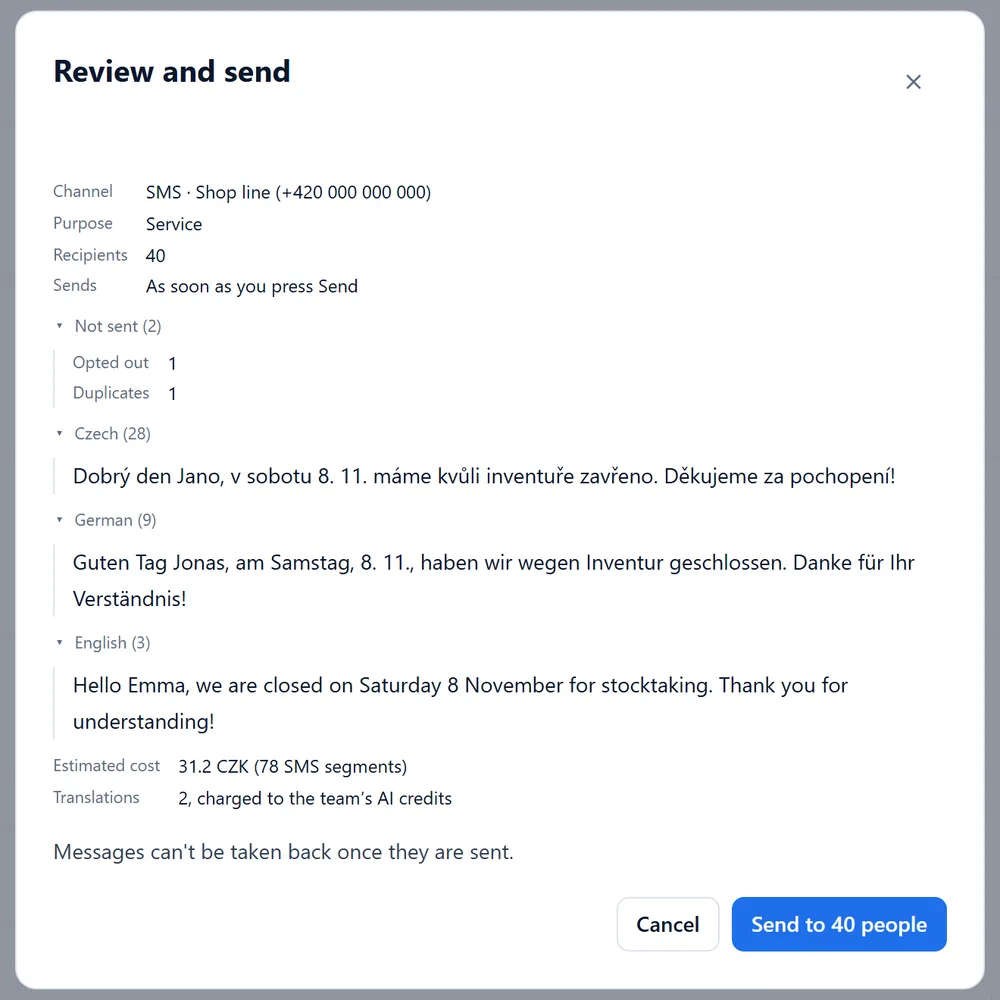
Messages go out a few a minute, and you can leave the page. Each one is an ordinary conversation, so a reply lands in the Clients inbox, marked with the batch it came from.
Follow a batch while it sends
Open the batch from Batches. The page counts what was sent, replied, failed, not sent and unconfirmed, and Recipients lists every person with what happened. Show recipients narrows the list, and a row opens that person's conversation.
If sending stops — not enough text credit, for example — the page says why. Fix it and press Resume. A pause for a provider's limit carries on by itself. To stop a batch, open More › Stop sending; messages already sent cannot be taken back.
Keep wording in templates
- Go to Clients › Outreach › Templates and press New template.
- Fill in Name, What it is for and Written first in, then press Create template.
- Write the wording for each channel. A text can be up to 1,600 characters; an email has a subject and a message.
- Press Add a language, or use Translate… on the first language, to add the others.
- For WhatsApp, open the wording's menu and choose Submit for approval. Meta checks every WhatsApp wording before it can open a conversation.
A template can also be put into a reply in the Inbox with Insert template.
Check what an agent prepared
- Have a channel manager add your team agent to the text or email channel with On request. In a conversation with that agent, ask it to prepare messages for you to check rather than send them.
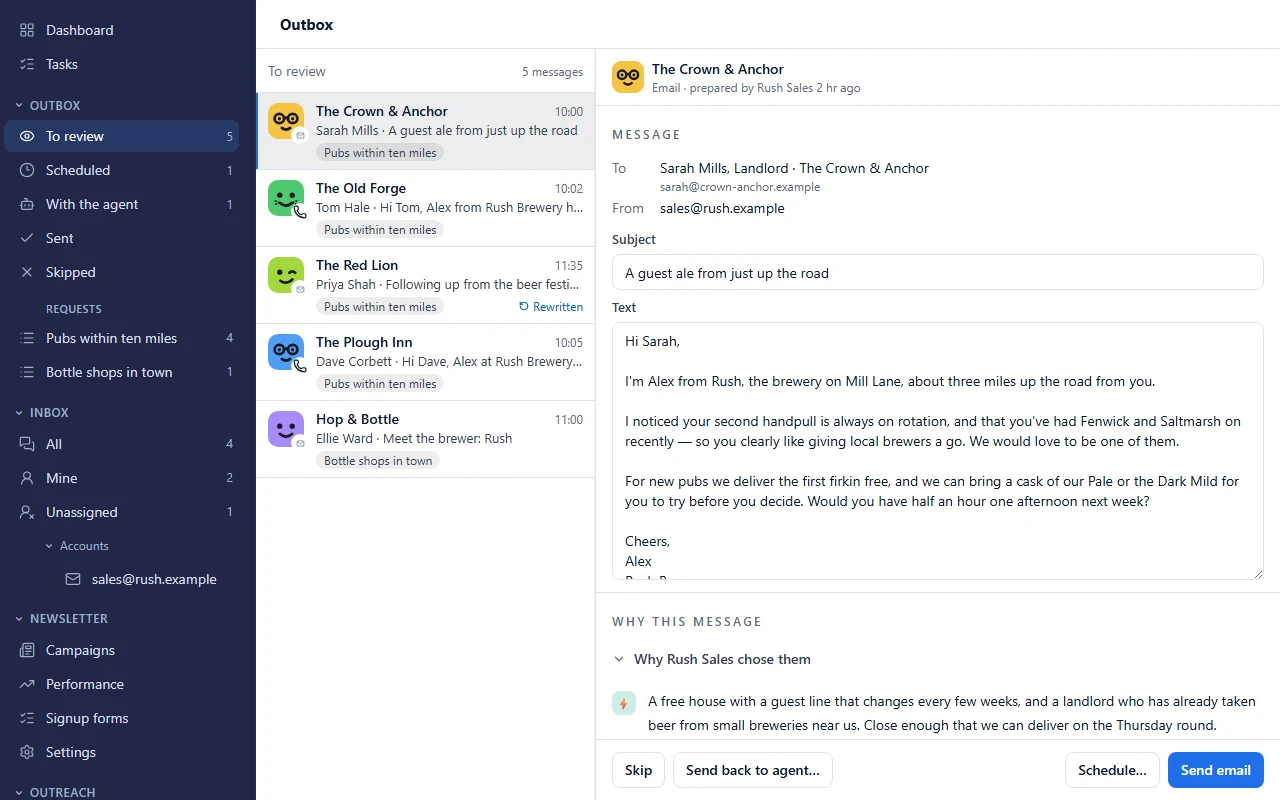
- The agent posts a card saying how many it prepared. Press Review in the Outbox, or open Clients › Outbox › To review.
- Open a message. The message comes first, with who it is to and who it is from. Below it, Why this message shows why the agent chose them, what it found and the evidence.
- Done with a part of the reasoning? Press its heading to fold it. It stays folded for every message you open on this device; press it again to open it.
- For an email, choose a connected mailbox you can send from in From. Edit or add addresses in To and press Cc to copy someone else. Separate addresses with commas.
- Edit the subject or text if you like. Undo my edits puts the agent's version back.
- Press Send email or Send text, or Schedule… to send it later. The next message opens.
Open tracking starts on. Turn it off beside Message for one email, or under Admin → Clients → Email tracking for the team. Sent shows when the tracking image loaded. Mail apps can load images automatically.
Not right? Send back to agent… asks for a rewrite with your note, which can apply to every message from the same request. Skip sets one aside; Review again brings it back.
To set up an agent that researches a list of companies and prepares a message for each, see Set up a sales research agent.
Everyone in the team can read the Outbox. Sending a message needs a person who answers on its channel. Editing, skipping and sending back need the same, or being the person who asked the agent for the messages. Anyone else sees each message with the line You can read these messages. Someone who answers this channel can change and send them.
An agent on the channel reads the Outbox too, in every list: what waits for review, what is scheduled, what was sent and what was skipped. For a sent message it sees whether it was delivered and read, and whether the customer has written since.
What the words mean
- Draft
- A batch being set up. Nothing is sent.
- Proposed
- An agent wrote the batch and is waiting for a person to approve it.
- Scheduled
- The batch goes out at the time shown. Cancel it to change anything.
- Sending
- Messages are going out a few a minute.
- Paused
- Sending stopped. The page says whether it waits for you or carries on by itself.
- Not sent
- A person on the list was left out, with the reason: replied STOP, no consent, no number, or a batch in the last 24 hours.
- Unconfirmed
- The provider took the message but never said whether it arrived. It is not sent again, so nobody gets it twice.
- To review
- A prepared message waiting for a person in the Outbox.
- With the agent
- A message you sent back with a note, waiting for the agent's rewrite.
Good to know
- A batch reaches at most 500 people, and nobody gets more than one batch in 24 hours.
- Marketing texts get an opt-out line and marketing emails an unsubscribe link, added for you.
- When an agent proposes a batch, a manager of that channel approves it from the card in their conversation.
- You can set up WhatsApp batches and get their templates approved, but WhatsApp batches are not delivered yet. Use text or email for now.
- The Outbox works for text and email channels. The Personal Assistant does not prepare Outbox messages; an agent on the channel does.