 nessie
Nessie documentation
How to work with Nessie and its agents, and how to set it up and connect it to the tools you already use.
Agents
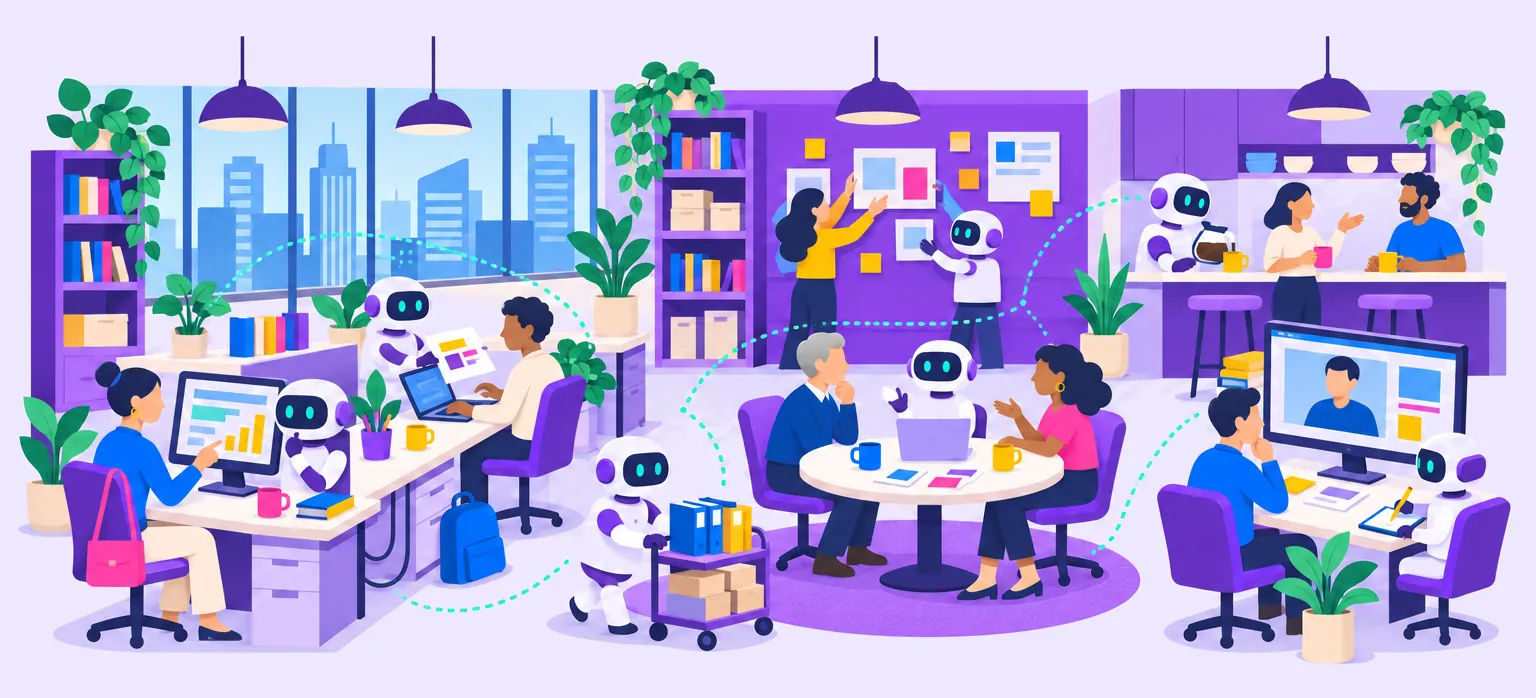
Create agents, talk to them, and put them to work on schedules and events.
- AgentsCreate an agent, tell it what to do, and choose what it may use and who can work with it.
- Working with an agentTalk to agents in conversations and channels, steer or stop their work, and answer what they ask.
- Triggers and automationsPut an agent on a schedule, or wake it when an email arrives, a ticket moves or a document is saved.
- BrowsersWatch an agent’s browser from the conversation, keep it in a window of its own, and take over whenever you need to.
Projects and boards
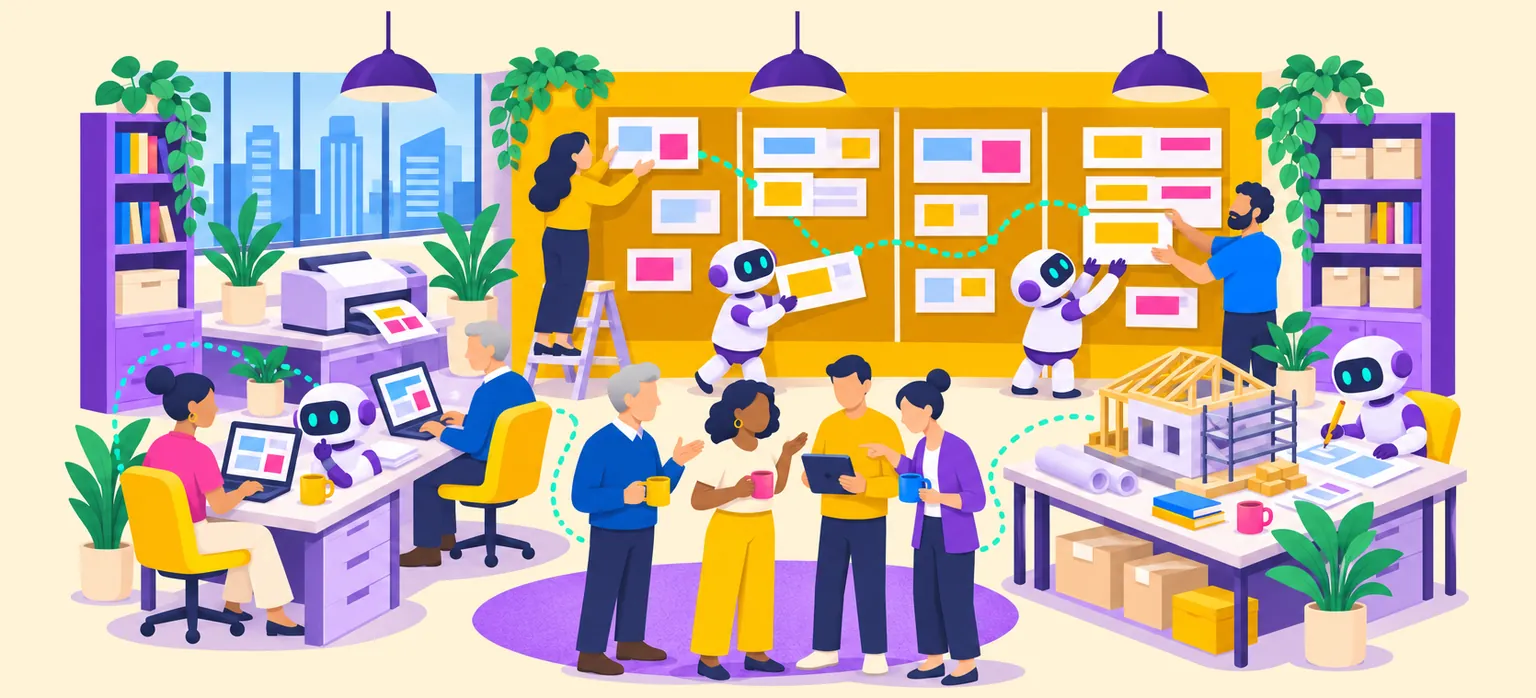
Organise work into projects, boards and tickets, and follow it on dashboards.
- ProjectsCreate a project, choose who can see it, and keep its work, documents and conversations in one place.
- Boards and ticketsOrganise a project's work into boards, columns and tickets, and hand tickets to people or agents.
- Boards and ticketsConnected sourcesBring work from GitHub, Jira, Linear or Trello onto a project board, and choose whether Nessie can change it.
- DashboardsShow live numbers from a project's connected services and tickets, built by describing what you want to see.
- DevelopmentSet up the CTO agent, send tickets to your computers, and watch and answer coding sessions in Dev.
Documents
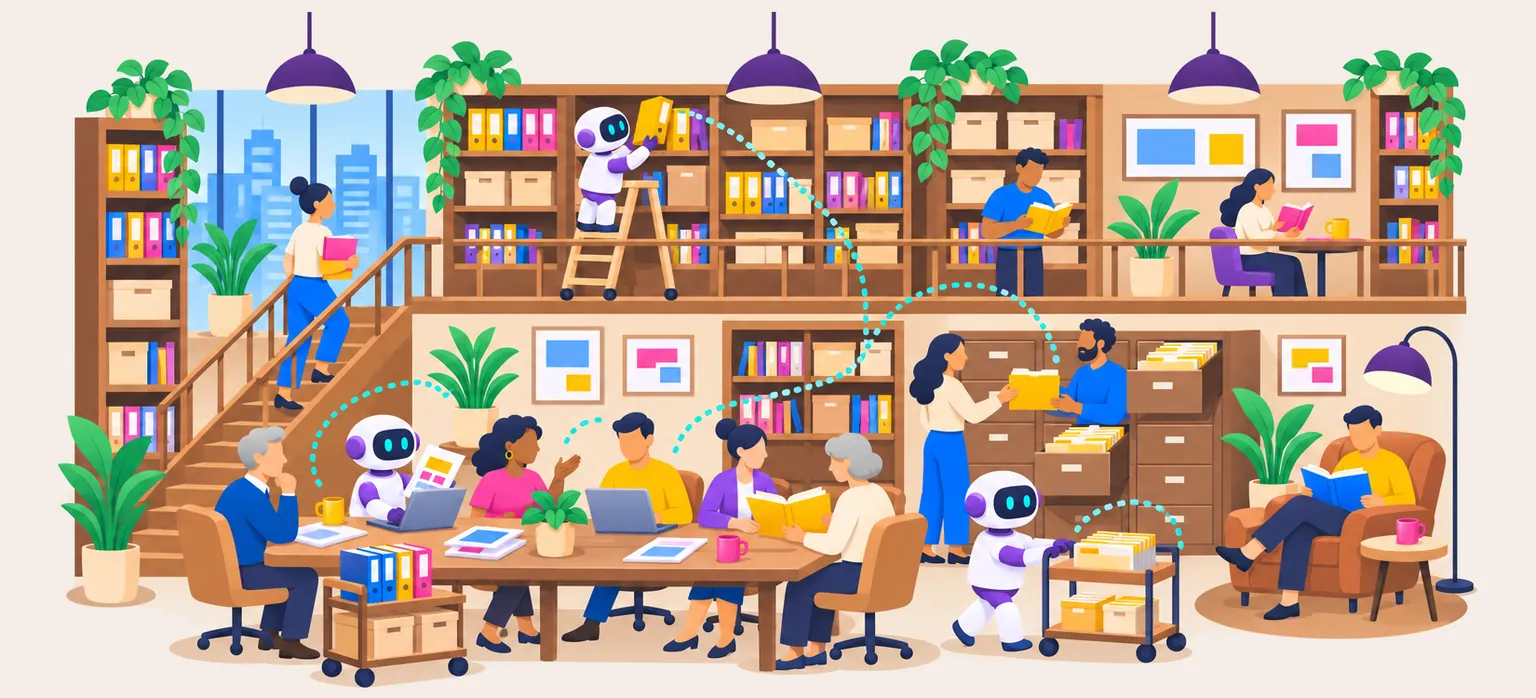
Write, share and sync documents and spreadsheets with people and agents.
- DocumentsOrganise, write, share and review documents and files, with people and agents working in them together.
- DocumentsSync documents to your computerKeep a copy of your team’s documents in a folder on your own computer, in step both ways.
- SpreadsheetsCreate, import, edit and export spreadsheets that people and agents work in at the same time.
- TablesKeep your team's lists in tables: import them, filter and count them, ask questions in your own words, and let agents keep them up to date.
Clients and sales
Answer customers on every channel, keep the CRM, and reach out to lists.
- Clients inboxReply, assign and resolve customer conversations from every channel, with your agents beside you.
- Clients inboxCustomer channelsBring website chat, Facebook, Instagram, shared email and text messages into Clients, and choose who answers.
- Contacts and the CRMAdd and import contacts, keep lists, and work on the records of the people and businesses you serve.
- Newsletters and formsStart a newsletter from a finished design, send it to a contact list, see how it did, and collect signups and messages on your website.
- Outreach and the OutboxSend one message to a whole list by text or email, and check the messages agents prepared before they go.
- Sales research agentGive an agent your list of companies, let it research each one and keep what it finds in the CRM, and check every message it prepares before it goes.
Computers
Give agents a real computer, and run them on AI models you already have.
- DownloadThe Nessie app for Mac and Windows, and Nessie Computer, which lets your agents work on a computer you choose.
- Nessie ComputerGive an agent a real computer to work on — on Linux, macOS or Windows.
- Nessie ComputerInstall Nessie ComputerInstall, pair and manage a computer that works with Nessie agents.
- Nessie ComputerAI models on your computersRun an agent on Codex or Claude Code under your own plan, or on a model you host with Ollama or another OpenAI-compatible server.
Install and connect
Install Nessie, use its API, and connect ChatGPT, Claude and MCP tools.
- Enterprise hostingDeploy the Nessie platform on your organisation’s infrastructure for enterprise use. To connect a personal or team machine, install Nessie Computer instead.
- PeopleSee who is in your team, invite someone new and manage everyone in the organisation.
- Your settingsChoose how you appear and what your team sees of your calendar, and look after your connected accounts and access keys.
- Credits and billingSet up payments, invite people and restore access.
- APIThe HTTP API behind every Nessie client, and how to authenticate against it.
- Connect ChatGPT and ClaudeAdd Nessie to ChatGPT, Claude, Claude Code or any MCP client, and choose what it may do as you.
- MCPConnect Nessie to MCP servers, and pair an outside agent so it can work in Nessie as you.
- Microsoft 365Let your agents work with Outlook, Teams, OneDrive, SharePoint and Excel as you, and choose what they may do.