 nessie
Triggers and automations
Put an agent on a schedule, or wake it when an email arrives, a ticket moves or a document is saved.
A trigger wakes an agent without anybody asking: every weekday at nine, every fifteen minutes, when an email arrives, when a ticket moves to a column or a document is saved. The agent does the job, posts what it found where you chose, and keeps quiet when there is nothing new.
Where to find it
- Ask in the conversation. Tell an agent what to do and when — “every Monday at 8:00, summarize last week’s tickets” — and it saves the schedule itself.
- An agent’s page → Triggers: everything that wakes this agent, with one-off schedules that have already run listed under Done. Ask … for a new schedule opens your conversation with the agent, which can set up a schedule itself; Add a trigger yourself opens the form for any kind of trigger.
- Admin → Automations → Schedules and triggers: every trigger in the team, with filters by agent, project, type and status.
- Your Personal Assistant conversation → Triggers: the triggers you set up for your own assistant. Only you see them.
- A project board’s column settings, a document folder and a mailbox’s email settings offer the triggers that belong there: ticket change, document change and email received.
Before you start
- A trigger on a shared agent is set up and changed by an organization owner or admin. Anybody can ask an agent in conversation to schedule something for them.
- The agent must already be in the channel a trigger posts to. Ticket and document triggers post to a public project channel, so everyone who can read the work can read the agent’s thread about it.
What can wake an agent
- Schedule — once at a set time, or on a repeating schedule such as Weekdays 9:00, in the timezone you choose.
- Interval — every so many minutes, from a first run you choose, optionally until a Stop after time.
- Event — when something happens in Nessie, such as a task changing state, a workflow finishing, a new comment on the team’s Facebook Page or Instagram account, or recipients opening a newsletter.
- Webhook — when another service calls Nessie with this trigger’s own key.
- Ticket change — when a person moves a ticket into a start-work column. Each ticket gets its own work thread.
- Document change — after a person saves a project document the agent watches. It reviews the change in a thread.
- Email received — when mail arrives in a mailbox: Review email, Prepare a reply or Reply automatically.
- Manual — only when somebody presses Run now.
Put an agent on a schedule
- Open the agent’s page → Triggers → Add a trigger yourself. To have the agent set it up instead, see Schedule from a conversation below.
- Give it a Trigger name, such as “Morning delivery check”, and under Trigger type choose Schedule.
- Check the Agent and choose the Channel it posts to.
- Under Schedule mode, choose One-off and a time under Run at, or Cron for a repeating schedule.
- For a repeating schedule, pick one under Repeats — Hourly, Daily 9:00, Weekdays 9:00, Weekly Mon 9:00 or Monthly 1st 9:00 — and check the Timezone. Advanced takes any other timing. The line under the choices says when it runs.
- For a check that usually finds nothing, switch on Roll quiet runs into one status message: a run with nothing new edits its last message instead of adding one.
- Press Create trigger.
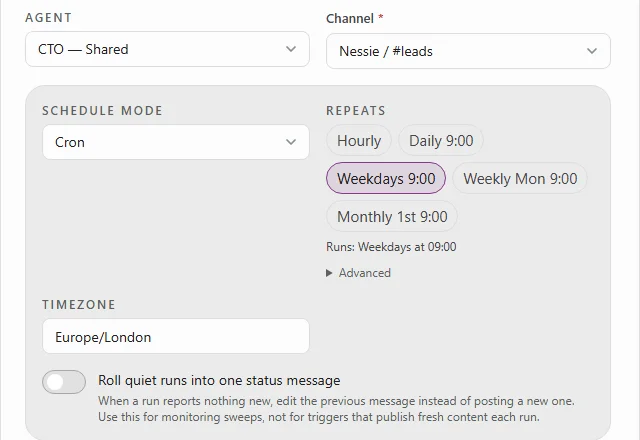
Each time it wakes, the agent works from its own instructions. Say in them what a scheduled run should do, or ask the agent in conversation, which saves the task together with the schedule.
Research one company at a time from a board
- Open the researcher’s page → About and select its own admitted local model. Use two separate, person-owned agents visible to the selected team, both in the board’s public project channel.
- On the coordinator’s Triggers tab, choose Add a trigger yourself → Ticket change and create a rule that picks up the board’s Review column. Keep the coordinator’s existing model and access.
- On the researcher’s Triggers → Add a trigger yourself → Ticket change, choose the same board, its research pickup columns and Assign on pickup. The Review column must neither start nor end the researcher’s work.
- Enable sponsored company research. Choose the exact coordinator, Review column, receiving rule and permitted CRM tools. Select provider-declared read-only tools for readback. Existing tool access still applies: grant the researcher’s ticket_research_ready action through its existing Advanced → Access controls. Save as the person sponsoring this work.
- Give the researcher a durable research Checklist and instructions to save sourced CRM research and a full dossier linked from the ticket and CRM. The coordinator can now place company tickets in the selected pickup columns. The researcher keeps one whole company until it explicitly hands over its saved evidence; the board supplies the next company.
- The saved sponsor is separate from the agent actor. Every effect rechecks the original sponsor’s current team, board, source, document and CRM rights. Pause the rule or turn off sponsorship to stop further work. Missing authority requires the original person; an unavailable authority service holds the company for retry.
- A finished reply or a move to Review does not complete research. The researcher must read back the full saved dossier and CRM evidence, finish the research Checklist and use the explicit research-ready action. The coordinator then receives the evidence in its own ticket work thread to review and prepare unsent outreach.
- A CRM action with an uncertain result holds that company and the researcher’s next pickup, even after a restart or deletion of its old run. Approved readback remains available. Automatic reconciliation or replay of uncertain native CRM writes is not supported by this release; a generic success or transport error cannot clear the hold.
- This workflow’s dossier save omits automatic AI embedding enqueue. The full dossier remains available through its ticket/CRM document links and direct reads. Text chunks and deterministic document links are still stored; semantic search and automatic recall that need the omitted embeddings are not promised. This is an operation-specific limitation, not a permanent ban on separately authorized indexing.
- Generative work uses the researcher’s admitted local lane without a cloud fallback. Deployment embeddings and indexing are a separate processing boundary. Sponsorship gives the researcher no mail or Outbox send rights, and it inherits none of the coordinator’s private corrections or memory.
Schedule from a conversation
- Ask any agent to do something later or on repeat. It asks for your timezone if it does not know it.
- Ask it to send an exact message at a set time — a reminder, a note to the team — and it saves that message word for word.
- Ask “what have you scheduled?” to list them, and ask it to cancel one to stop it. They also appear under its triggers.
Turn Sentry issues into bug tickets
- Create three epics on your project board for the areas you monitor, such as Bugs - Admin, Bugs - API and Bugs - Apps. Create an agent for triage and choose its model.
- Open the agent’s page → Triggers → Add a trigger yourself. Choose Webhook, then Sentry under Webhook source.
- Choose the Nessie project, Board and Bug Ticket type. Under Route Sentry projects to epics, enter each Sentry project slug and choose its epic.
- Keep New and regressed issues to limit traffic. Every error event requires Sentry Business or Enterprise and an error webhook subscription.
- In Sentry, create an internal integration. Paste its client secret into Sentry client secret, then press Create trigger. Copy the resulting Webhook URL into Sentry and subscribe to issue webhooks.
- In Nessie Apps, connect a project-shared read-only Sentry integration token and grant the agent its reviewed read tools. In the agent’s Access tab, enable Read Ticket and Update Ticket. Use a channel of the destination project and tell the agent to preserve the existing description when appending findings.
Each Sentry issue gets one ticket and initial analysis. Repeat events update its receipt without another model run; regressions allow one follow-up per issue per UTC day. Human changes to the ticket stay in place. Many distinct issues can still cause many analyses, so use your agent and team spending controls where needed.
Check delivery history on the trigger if a ticket does not appear. Restore access or repair its destination and the saved delivery can retry. Test from Sentry; Run now is unavailable. To rotate the secret, paste the replacement and press Save client secret. The saved secret is never shown again.
Run, pause or fix a trigger
- Run now starts it at once. Press the trigger’s name to open its page, where the run appears under Recent deliveries.
- Pause stops it until you press Resume. Edit changes it. Pausing a document trigger stops queued reviews from starting. When a schedule ends at its set time, its last scheduled run can still go ahead.
- A schedule set to run once moves under Done when its time has passed: one line with when it ran and how it ended. Press the line to open it. To run it again, press Edit on its page and give it a new time; it goes back among the live schedules.
- On an agent’s Triggers tab the live triggers are always all shown, above the done ones. The done list is paged; change pages at the bottom. In Automations, the Done filter shows them for the whole team.
- Delete trigger removes it for good. A trigger that has already run cannot be deleted; pause it instead.
- When a schedule stops by itself, its page says why and what to do. Reauthorize starts it again as you once you have fixed the cause.
What the words mean
- On — it will run at its next time or event.
- Turned off — somebody paused it, or a repeating schedule passed its Stop after time.
- Done — it was set to run once and that time has passed. It will not run again unless you give it a new time.
- Error — it has stopped running; its page says why.
- Needs attention — it can no longer prove who it runs as, for example after a sign-in changed. Reauthorize it to resume.
- Running, Succeeded, Failed, Canceled — what its latest run is doing, or how it ended.
Good to know
- A schedule runs as the person who set it up, with their access. If they leave the organization, the team or the channel, it stops and says so.
- A scheduled run reports by exception. When there is nothing new, the agent may finish without posting.
- Triggers on your Personal Assistant are yours alone and post only in your own conversation with it.
- Built-in agents hold no triggers of their own; ask your Personal Assistant or one of your agents instead.
- Workflows and batch jobs live beside triggers in Admin → Automations. Run the workflow in the designer to refresh the sample step outputs for your selected team. Open a batch job in the team where you created it. The workflow catalog counts the installations you can see in the selected team.
- If a workflow reaches a blocked step, it waits. An administrator can open the run and unblock or skip that step. Cancelling the run stops pending steps from starting.
- For conversations, approvals and stopping a run, see working with an agent.