 nessie
Customer support that answers from what you know
Every customer channel in one inbox. An agent answers from the documents you chose, in the customer’s language, and hands over to a person when it is unsure.

Most support questions have been answered before. The opening hours, the returns policy, where the order is: the answer is written down somewhere, and a person still has to find it and type it out again, at whatever hour the customer writes. In Nessie an agent answers those questions from your own documents, and your people take the conversations that need a person.
Where customers write
- Website chat
- Text messages
One inbox
Every conversation lands in Clients.
The agent
Searches the folders you chose.
Answers from your documents
Or hands it to a person
When the documents do not have the answer.
Every customer channel in one inbox
The chat on your website, email, text messages, WhatsApp, Facebook and Instagram messages all arrive in Clients. Your team sees what nobody has picked up, what is theirs and what is waiting on the customer. Anyone can assign a conversation, leave a note for colleagues, turn it into a ticket or resolve it.

How the inbox works: the Clients inbox guide. How to connect each channel: Connect customer channels.
Answers from your documents, and only from those
Put what you know into Documents: the price list, the returns policy, the manual, the answers to the twenty questions you get every day. For the chat on your website you name the folders the agent may answer from. It searches them by meaning as well as by exact words, and answers from what it finds there. It cannot read anything outside those folders, and visitors are always told that an AI is answering.
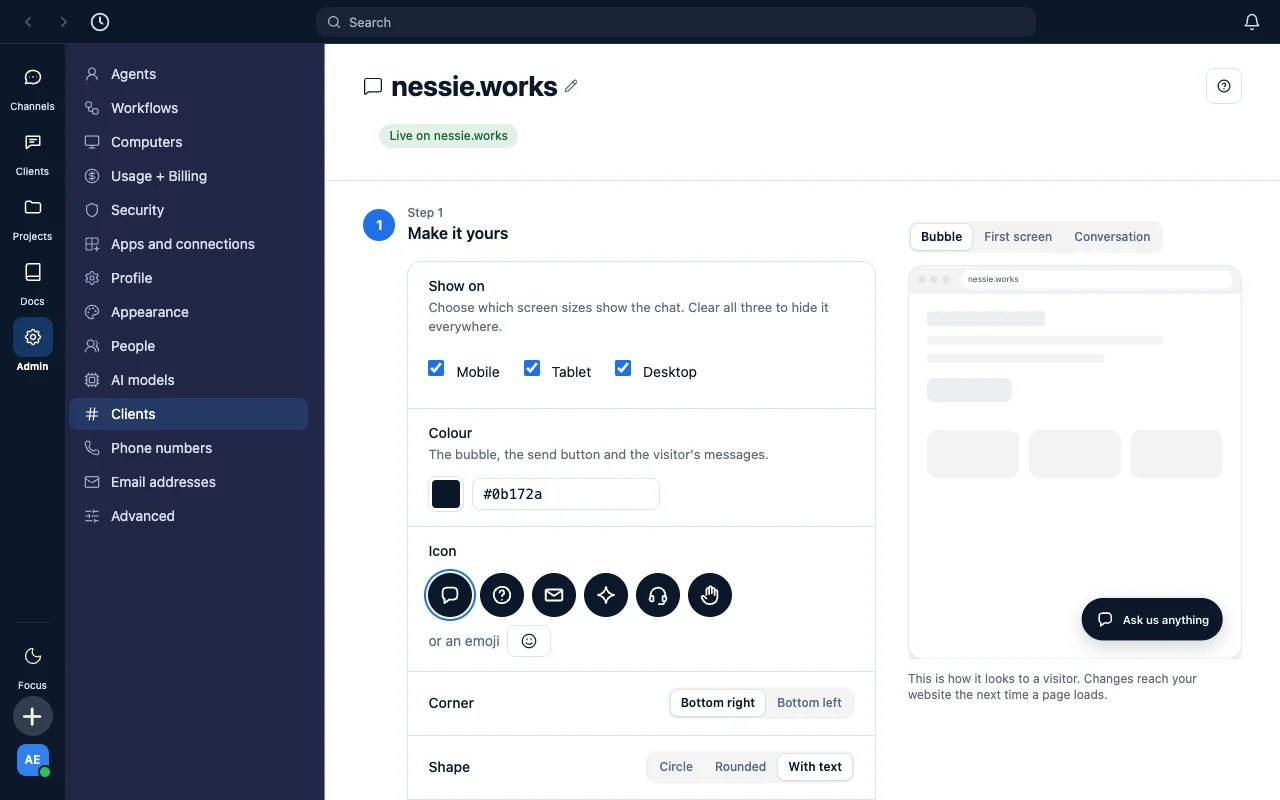
When you change a document, the next answer uses the new text. Nothing has to be retrained. How documents work in Nessie.
You choose how much the agent does
Each agent on a channel has one role, and you can change it at any time.
- Helps when asked. The agent stays out of the conversation until one of your people asks it for a draft or a fact.
- Drafts for approval. The agent writes every reply, and a person reads it and sends it.
- Replies automatically. The agent answers on its own and stops when it is unsure.
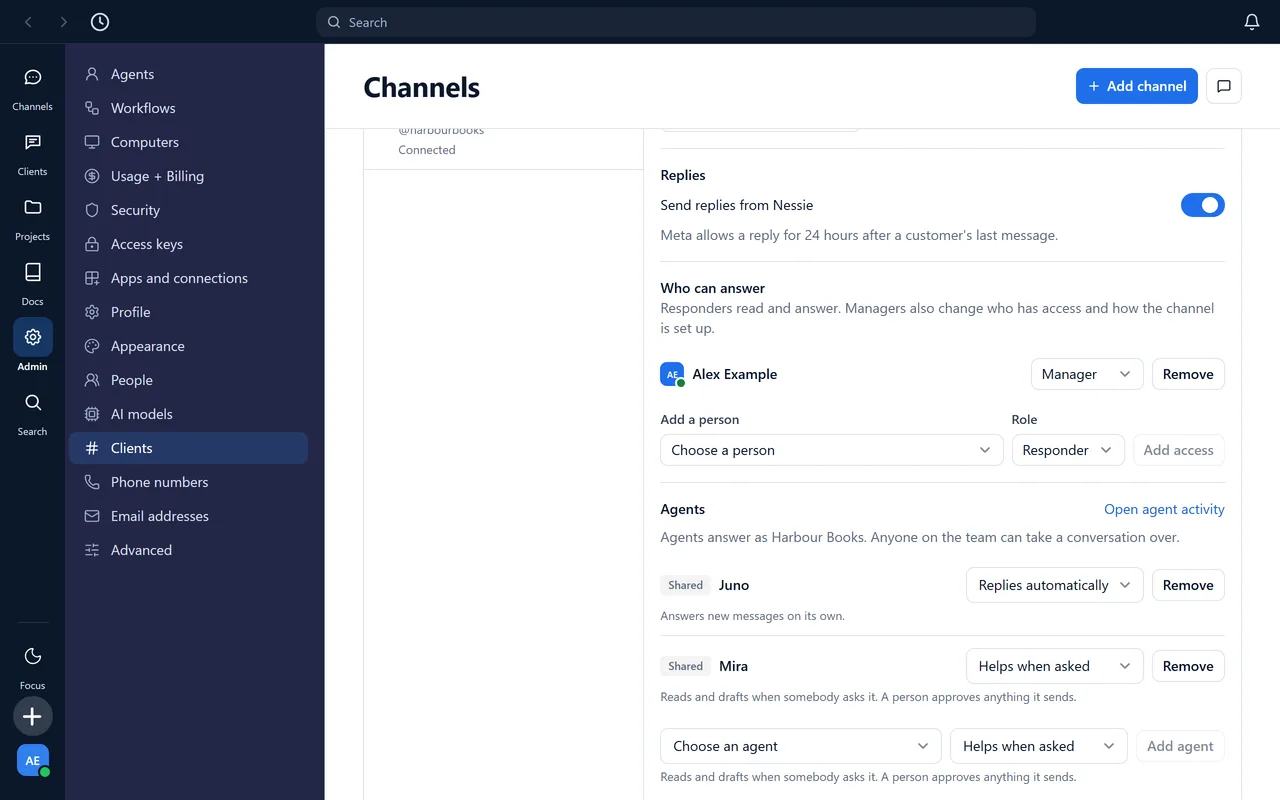
On email the agent always prepares the reply and a person presses Send, so nothing leaves your company address unread.
A person is always one press away
- It asks instead of guessing. When the agent cannot answer, it says so, hands the conversation to your team and marks it in the inbox.
- Take over. Anyone on the team can press Take over, answer the customer and hand the conversation back with Resume auto replies.
- Alerts for what matters. The agent raises a complaint or a customer ready to buy with the person the conversation is assigned to.
- Limits you set. You cap the automatic replies a channel may send in a day. A message that tries to give the agent instructions is flagged, and its reply waits as a draft.
In the customer’s language
A customer writes in Japanese. You read the message in your own language with Translate message, write your answer in your own language, and the customer receives it in theirs. The agent answers in the language the customer wrote in.
More than answers
Some questions end in work: book a table, check an order. You describe each service the agent may offer on a channel. The agent fills in a request for that service and nothing else, and you decide whether a person approves each one. It can also suggest moving a customer to the next stage in the CRM, and a person approves that too.
Inside your own software, a digital employee helps the person using it, on the page they are on.
Start with the website chat
- Open Clients and press Try Clients free for a month.
- Put your answers in one folder in Documents.
- Add a website chat, choose the agent and that folder, and paste one line of code into your site.
- Start with Drafts for approval and read what the agent writes. Switch to Replies automatically when you trust it.
See it at work in a restaurant, a shop or a hotel, or read about the CRM and customer channels behind it.