 nessie
Documents
Organize, write, share and review documents and files, with people and agents working in them together.
Documents is where your team keeps what it writes down: plans, notes, spreadsheets, wireframes and every file you upload. People and agents work in the same documents, with the same access rules, and every change is kept as a version you can go back to.
Where to find it
- Docs in the left-hand rail opens Documents for the team you are in. On a phone it is Docs in the bar at the bottom.
- A project’s documents are also in the project: open Projects, choose the project and open Docs.
- An agent’s own documents are under Agents in Documents.
- A link someone sends you to a document opens it directly, if you are allowed to see it.
Before you start
Nothing needs setting up. Every person has My Documents from the start, and every project has its own folder. You only see the documents of the team you are in; switch team to see another team’s.
Browse your documents
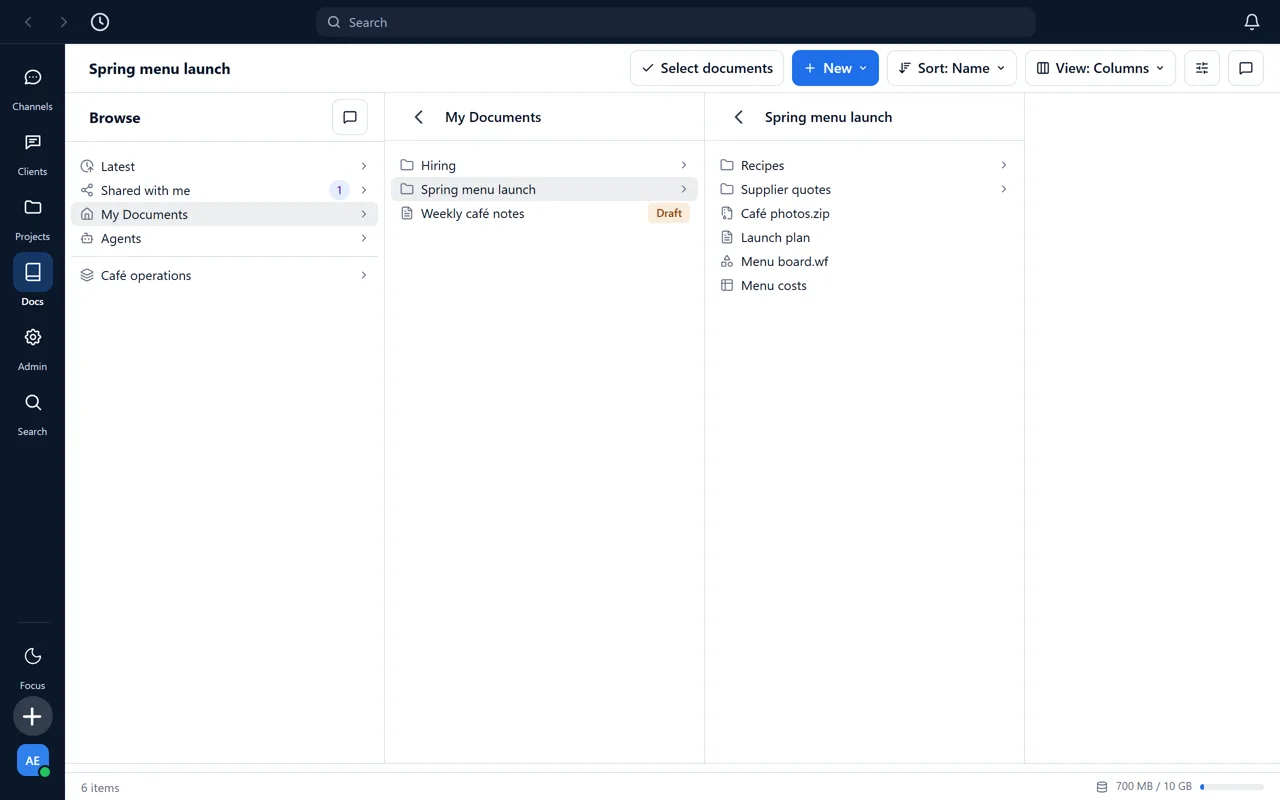
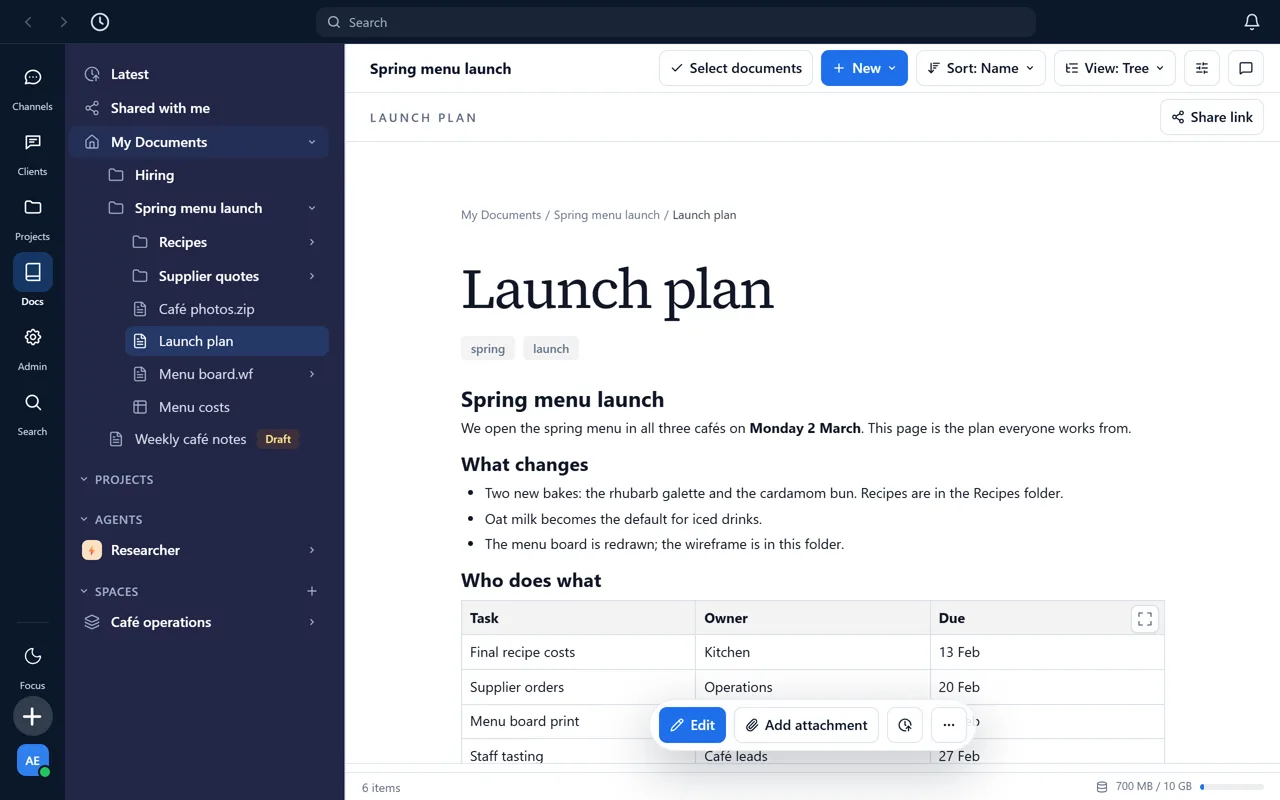
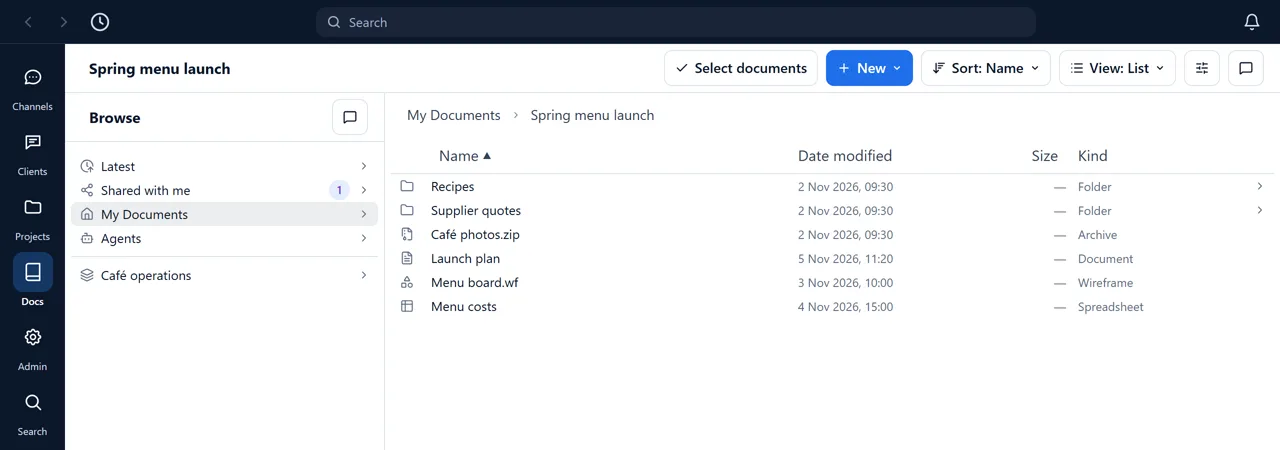
The left column lists the places documents live. Open one and its folders and documents appear beside it. Choose how you see them with View in the toolbar:
- Columns — each folder opens in a new column to the right, so you always see where you came from.
- Tree — every folder in one tree on the left, with the open document beside it.
- List — one folder at a time, with the date modified, size and kind of each item.
In the Documents tree or a project’s Docs menu, click or tap a document once to open it.
Sort orders a folder by name, date modified, date created, size or kind. The strip at the bottom counts what is in the folder and shows how much of your organization’s storage is used.
Latest, Shared with me, My Documents, Tables, Agents and spaces
- Latest — what you and your team edited most recently, newest first.
- Shared with me — documents other people shared with you directly. The number beside it counts them.
- My Documents — your own documents. Only you see them, and anyone you share them with.
- Tables — your team’s lists with a column for each fact, kept apart from the folders. See tables.
- Projects — one folder for each project you are in. Everyone in the project sees it. Organization owners and admins can also read project folders in the selected team without joining the project.
- Agents — the documents each agent keeps. People who can see the agent can read them.
- Spaces — shared folders for a group of people, such as one for the whole company.
Create a space
A space is a shared folder with its own access. Use one for documents that belong to a group rather than to one project or one person.
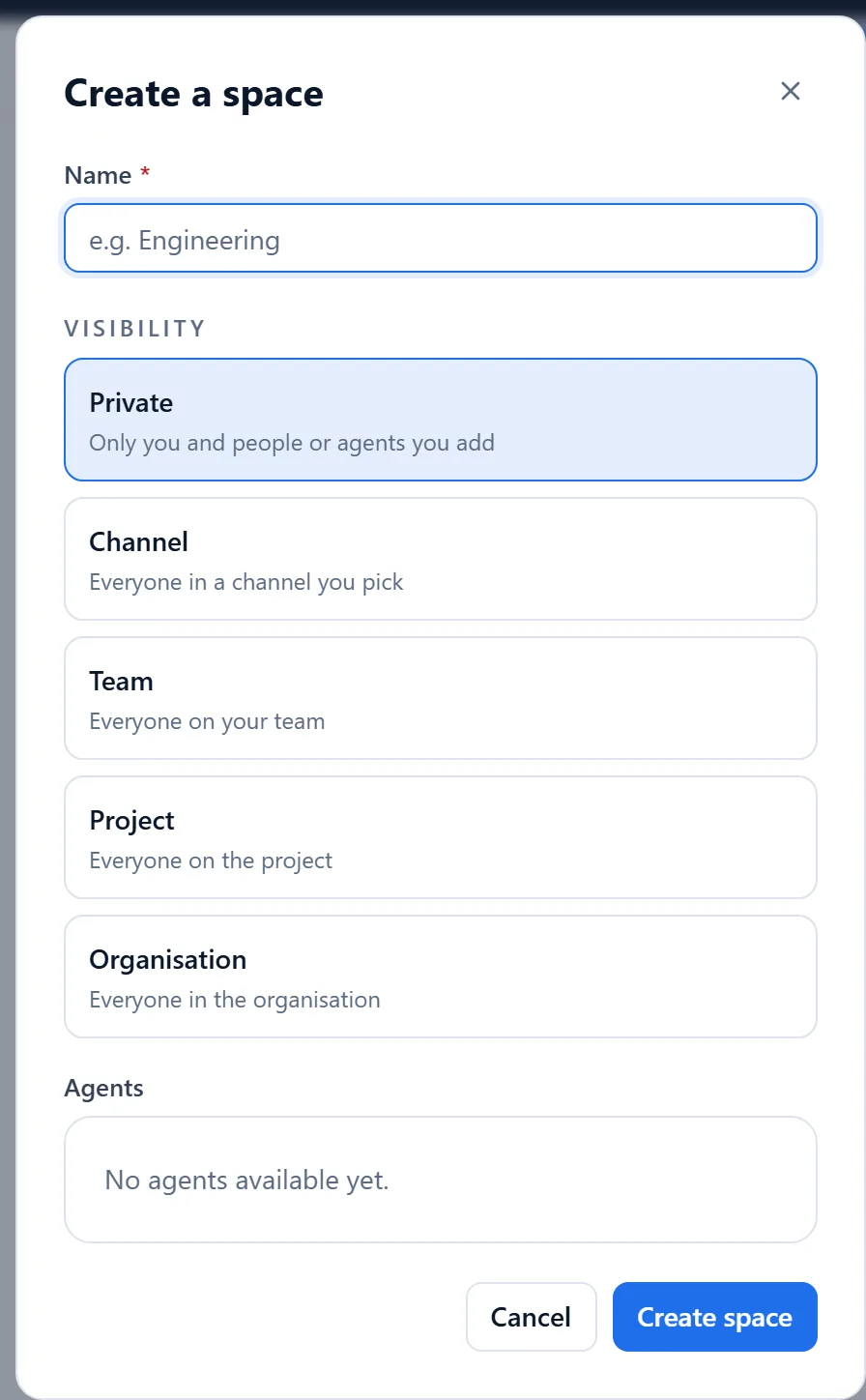
- Open Documents and choose New → Space…, or press + beside Spaces in the tree.
- Give it a Name.
- Choose its Visibility. Organization opens it to everyone in the team, and Project to everyone in one project. Private, Team and Channel spaces are open only to the people and agents you add.
- Tick any Agents that should be able to read and write in it.
- Press Create space.
Change who is in a space
Open the space and press Sharing & settings (the sliders button in the toolbar), or choose Sharing & settings… from its menu. There you change its name, description and visibility, add or remove People with access and Agents with access, and switch on Restrict editing so only the people you list can change anything; everyone else can still read. Each change is saved as you make it.
Create a document, spreadsheet, table or wireframe
- Open the folder where it should go.
- Press New and choose Folder, Document, Spreadsheet, Table, Wireframe or Upload….
- Type a title. A new document opens in the editor; a spreadsheet or wireframe opens ready to use.
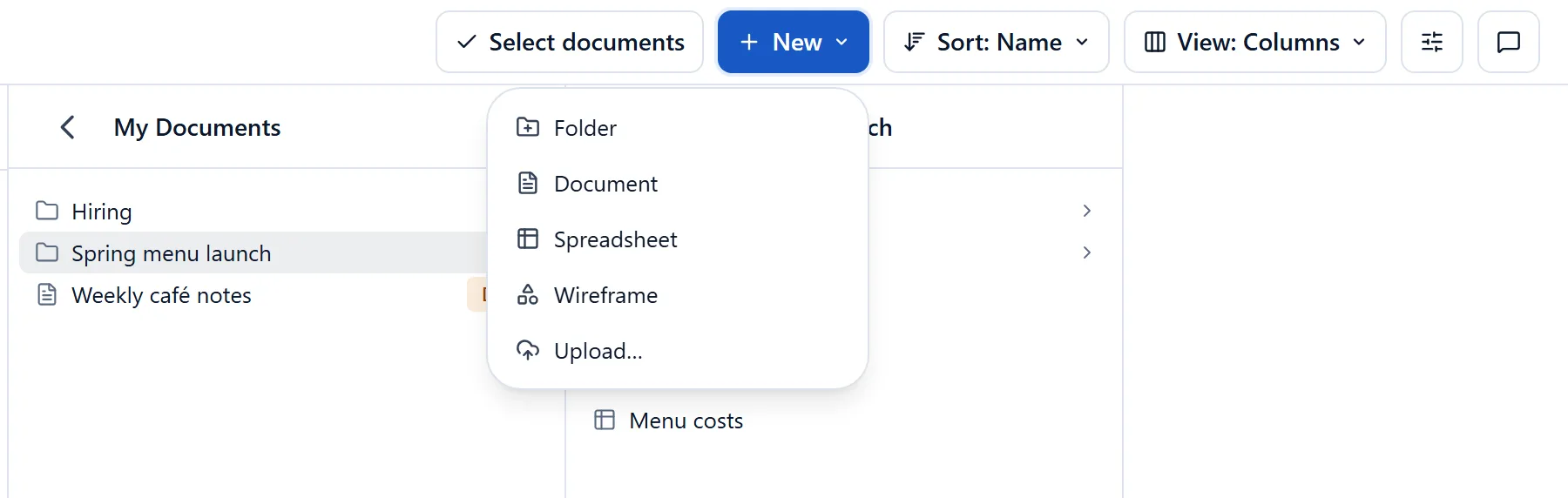
Right-clicking an empty part of a folder offers the same choices. An empty folder also shows buttons for the ones that go in it.
A table is not kept in the folder: it opens in Tables, and one made in a project’s folder belongs to that project.
Write and publish a document
- Open the document and press Edit.
- Write. Headings, lists, tables, links and images all work, and your changes save as you type.
- Press Publish when it is ready for others, or keep it as a draft. Press Done to stop editing.
- You can publish regular documents from the Documents area of an agent you own, subject to your organization’s approval rules.
- Drafts. A document marked Draft is not published yet. Search finds it only once it is.
- Labels. Type labels under the text; a comma or space turns each into a tag you can find documents by.
- Links between documents. Type [[ and the start of a title to link another document. If it does not exist yet, Nessie offers to create it. A document lists the documents that link to it under Linked from.
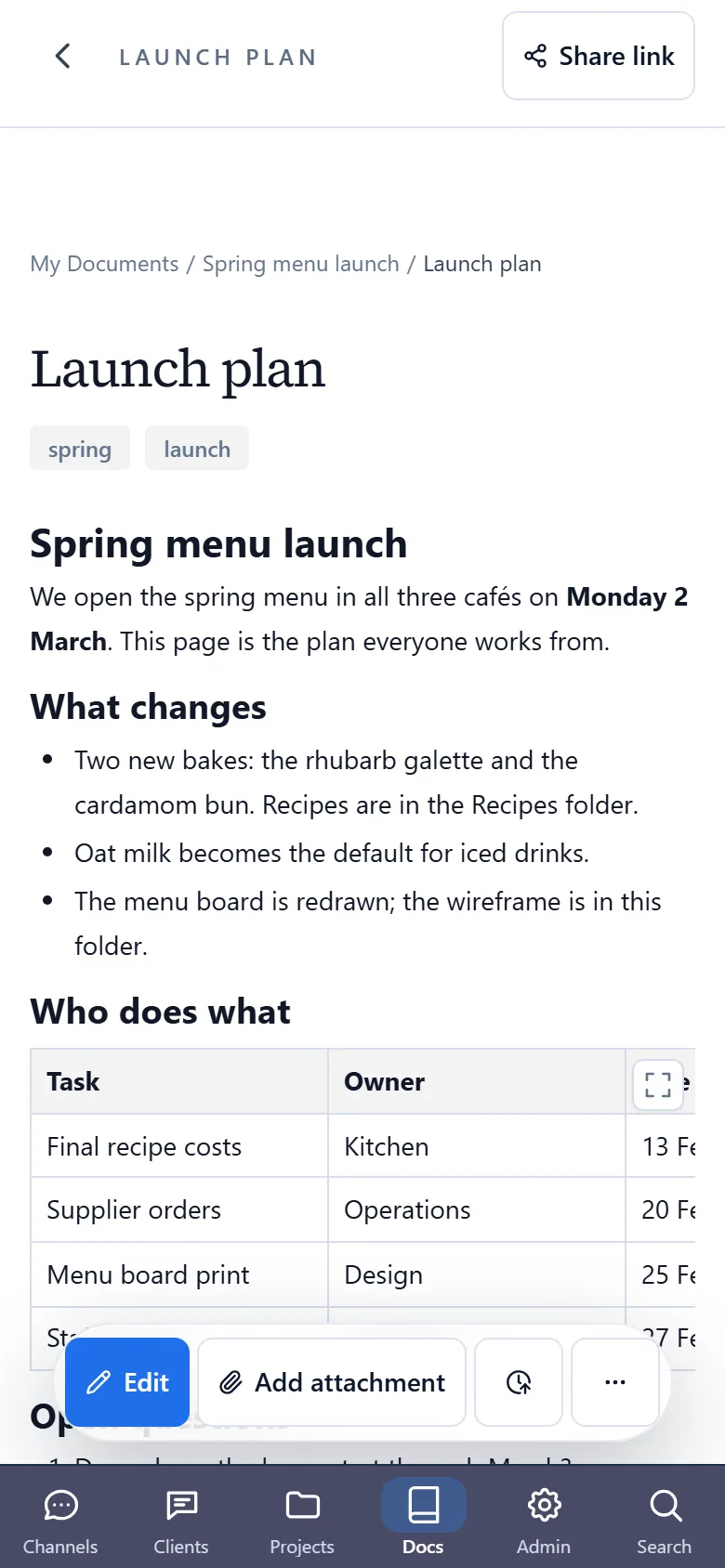
- Attachments. Add attachment at the bottom of a document adds a file to it, without putting it in the folder.
- Assistant. The Assistant button at the top right opens an agent beside the document. It reads the document you are on and can edit it for you, through the same Edit and save you use.
Upload files and open them
- Open a folder and choose New → Upload…, or drag files from your computer onto the folder.
- Watch the upload progress at the bottom of the folder. You can upload up to 500 files, and 5 GB, at a time.
- Previews. PDFs, images, video, audio and text files open in Documents. Other Office files, books and other long files open as a readable text preview you can search; download the file for its original layout.
- Word documents. Upload a .docx file to import its text and basic structure into an editable Nessie document. Formatting may differ. The original file stays available to download, even after you edit the document.
- Spreadsheet files. An uploaded .xlsx, .csv or .tsv file becomes a spreadsheet you can edit here. See Spreadsheets.
- Text files. Markdown, HTML and plain text files can be edited in place with Edit Markdown, Edit HTML or Edit text file.
- A new version of a file. Choose Upload new version… from the file’s menu. The older versions stay in its history.
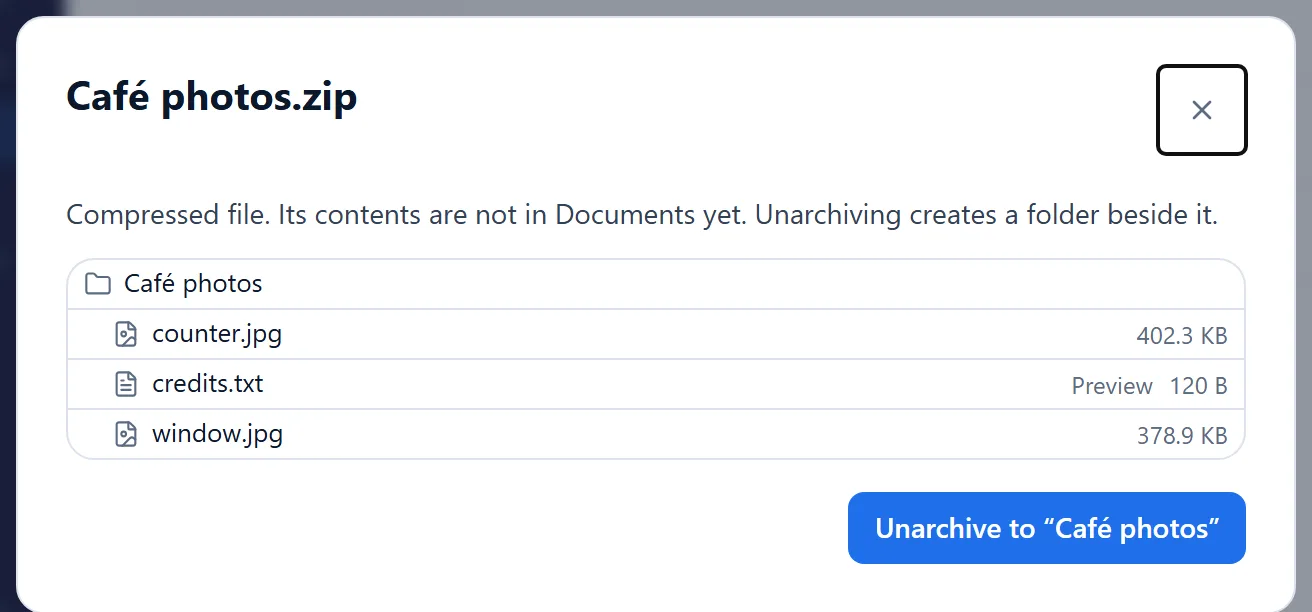
- Archives. A .zip or other archive shows its contents with View archive contents. Unarchive puts them in a new folder beside it.
Search reads the text of what you upload. A file’s Get Info says whether it is Searchable yet, and why not when it is not — for example, a draft, an image with no text, or a file too large to read.
Wireframes
A wireframe is a clickable sketch of a website or an app: pages you can click between, drawn as Cards or Lines. Choose New → Wireframe, then press Edit with agent and say what to change; an agent edits it in a conversation that only you see, and everyone who opens the wireframe sees the saved result. Download .wf.zip exports it, and uploading that file brings it back as an editable wireframe.
Go back to an earlier version
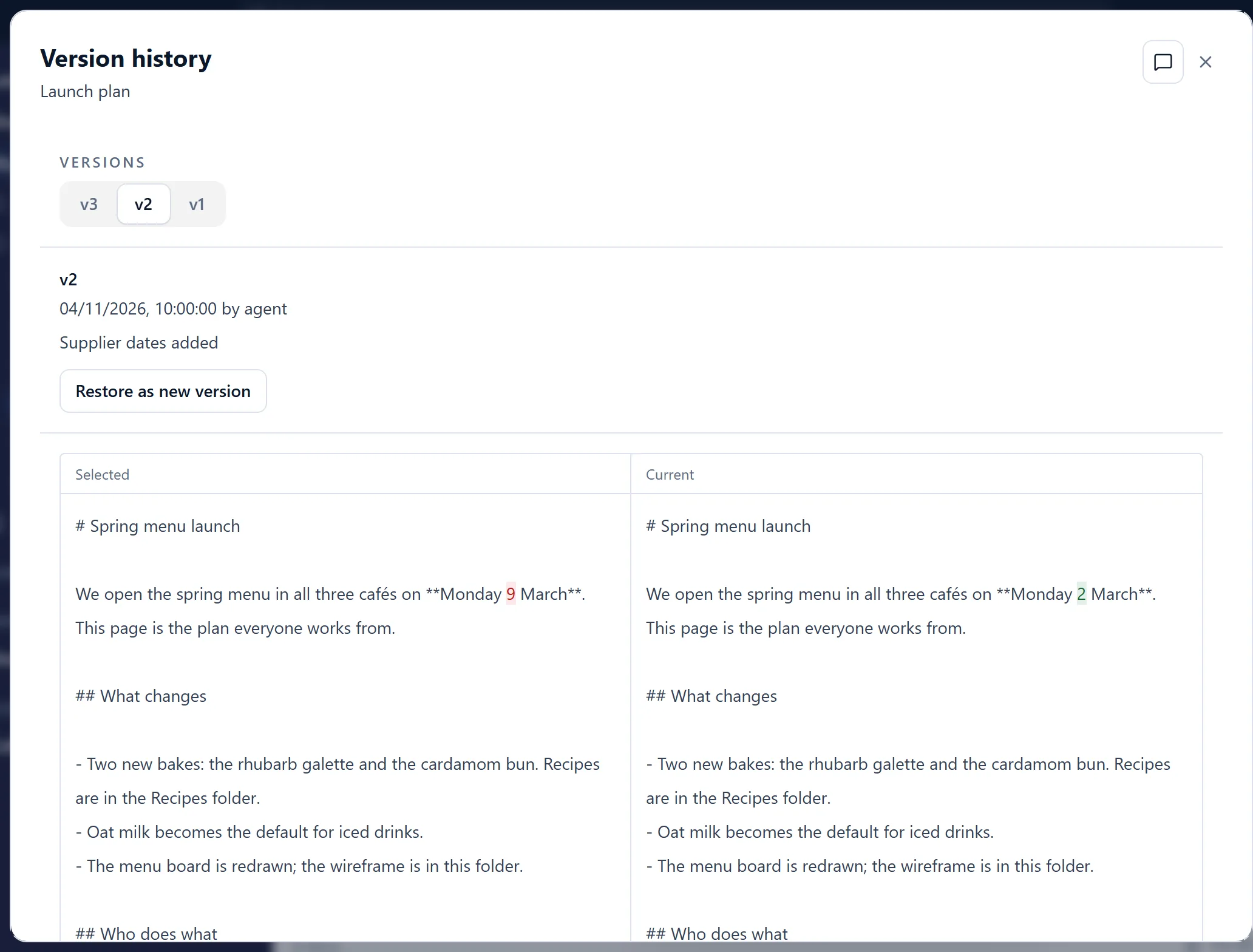
- Open the document’s menu and choose Version history, or press the clock button at the bottom of an open document.
- Choose a version. The two columns show what it said and what the document says now, with the differences marked.
- Press Restore as new version to bring it back. The current text stays in the history too, so nothing is lost.
Name this version… in a document’s editing menu gives the current version a name, so the list still makes sense a month later. A file’s history lets you download any earlier version.
Comments and notes
- Comments sit under the document. Write in Add a comment…, reply, react, and Resolve a thread when it is done; Reopen brings it back.
- Notes belong to a passage. Select some text and press Add note; the passage stays highlighted. If someone later deletes that text, the note stays in the list, marked as orphaned.
Agents read comments and notes, and can write them, so you can leave a note for an agent on the exact sentence you mean.
Who can see what
Where a document lives decides who can see it. Open Get Info, or Sharing… in its menu, to see the answer for any document in plain words.
- My Documents — only you, plus anyone you share a document with.
- A project’s Docs — everyone in the project. To change who sees them, change the project’s members; there is no separate sharing.
- A space — the people its visibility and settings allow.
- An agent’s documents — the people who can see that agent.
Share a document from My Documents
- Right-click the document, file or folder and choose Sharing….
- Choose a person in Add a person….
- Choose Can view to let them read and download it, or Can edit to let them change it too.
- Press Done. They see it straight away under Shared with me; nobody has to approve it.
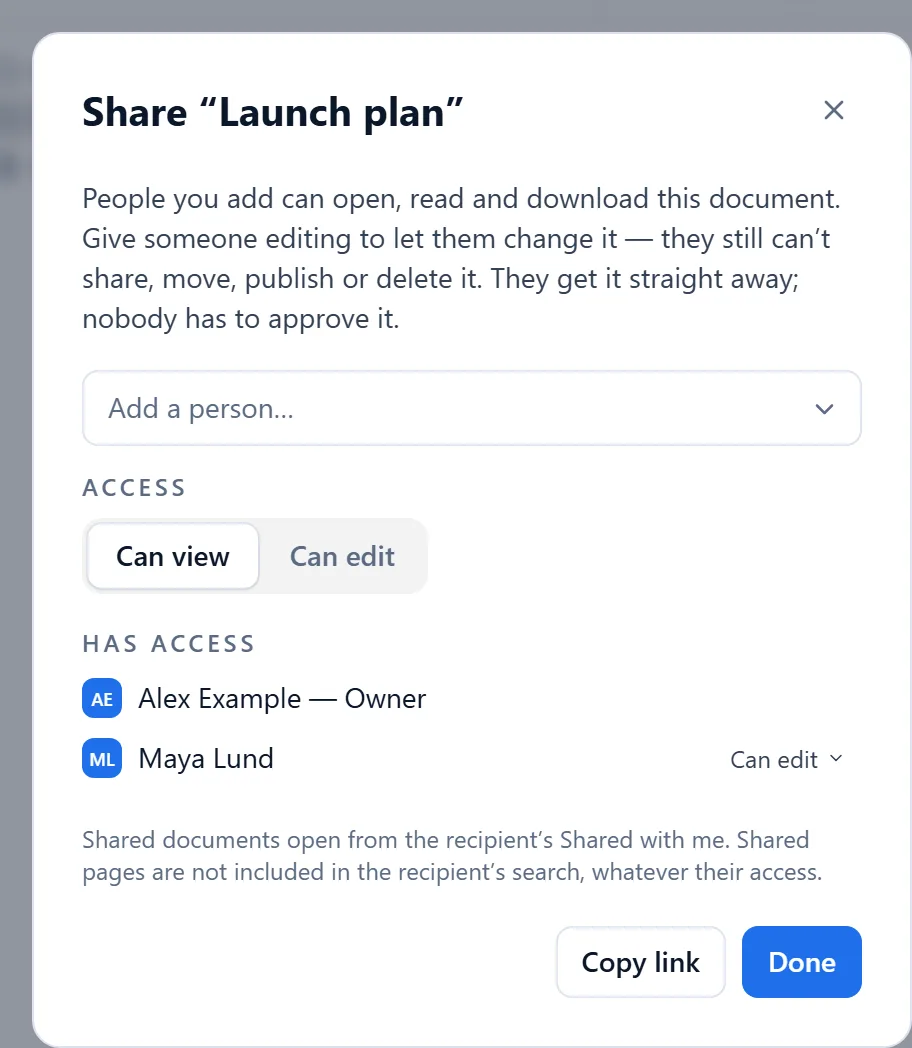
Someone who can edit your document still cannot share, move, publish or delete it. Their changes are saved as versions under their name, and you publish them. Sharing a folder includes later additions. Manage sharing in the document’s team. Recipients see only the documents and folder names they have access to. Shared documents do not appear in the other person’s search.
Send a link
Copy link in a document’s menu copies its address. Share link at the top of an open document does the same, and on a phone it opens the phone’s own share sheet. The recipient needs to sign in and already have access.
Share a document by link
Share a document or file with someone who does not have a Nessie account. You can share a team or project document you can open and edit, or a document you own in My Documents, if your team allows sharing by link. Sensitive documents and documents private to an agent cannot be shared this way.
- Open the document’s menu in Documents and choose Sharing….
- Turn on Anyone with the link can view.
- Press Copy and send the link. The recipient sees a preview or a download, depending on the file type.
- To stop the link working, return to Sharing… and turn off Anyone with the link can view. Anyone who already has the link can no longer open it.
An organization owner or admin can open Security › Document sharing to control whether sharing by link is allowed and use Stop sharing on a link in the selected team.
Rename, move and delete
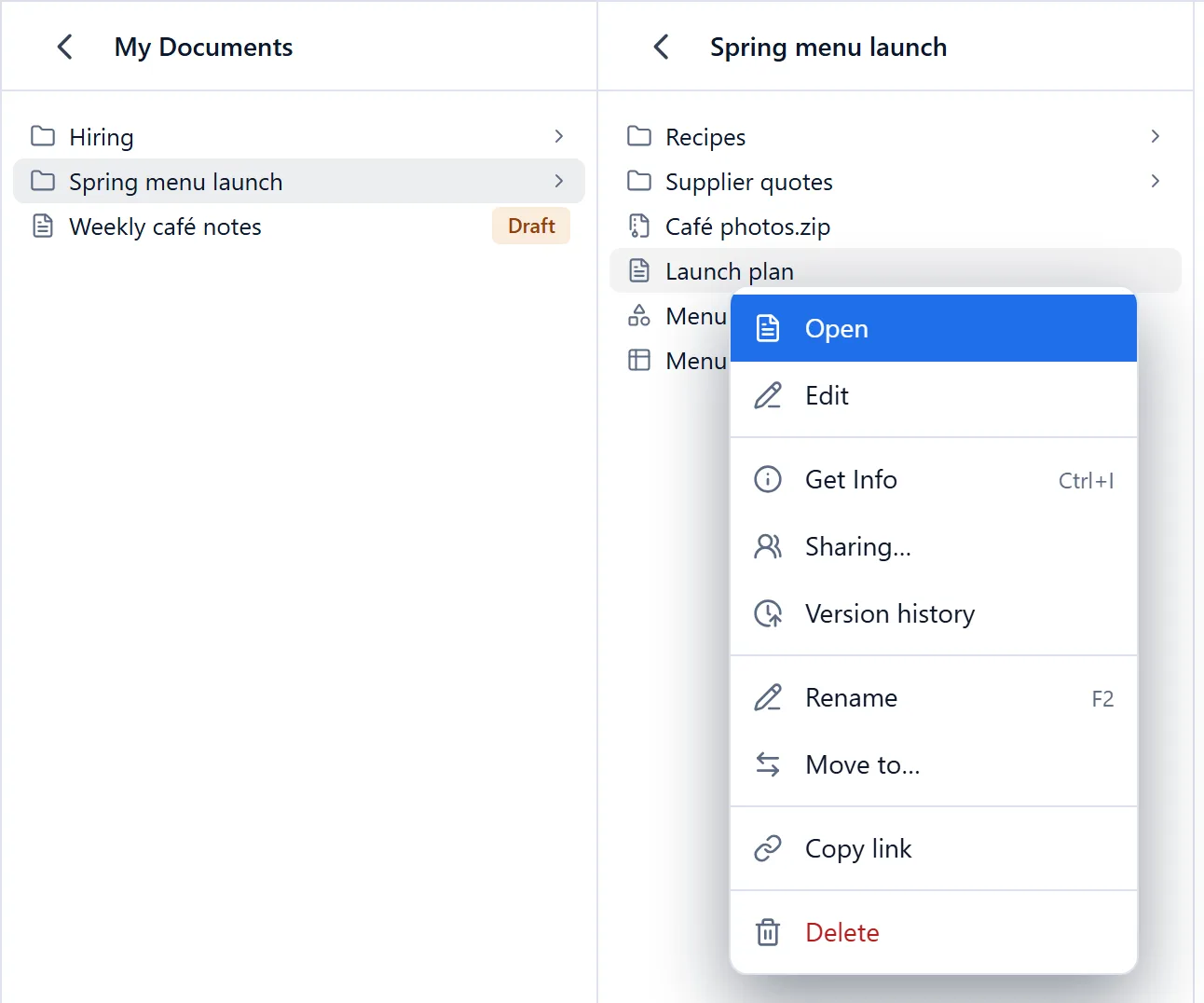
Right-click any document or folder — or press its ⋯ button, or hold it on a touch screen — for its menu.
- Rename (F2) changes its name in place.
- Move to… opens a folder picker. You can also drag items onto a folder. If the move would change who can see it, Nessie tells you who will see it afterwards and asks first.
- Delete asks once for a single document or a small folder. Deleting a folder with more inside, or several items at once, asks a second time, because it deletes everything inside for everyone. Deleting cannot be undone.
Download, move or delete several at once
- Open the folder and press Select documents.
- Tick the items you want, or Select all.
- Press Download ZIP, Move to… or Delete.
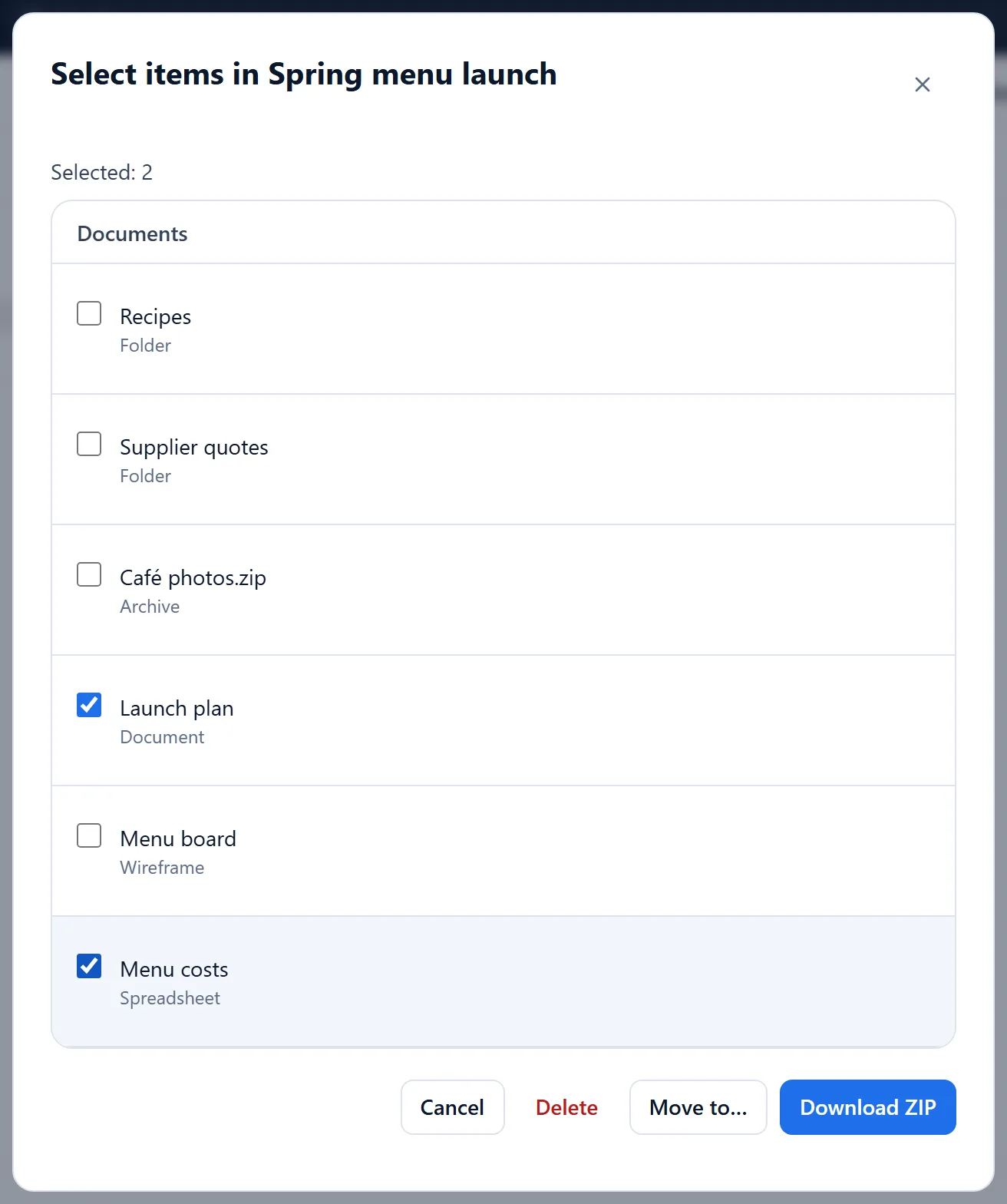
A ZIP holds up to 500 items and 60 MiB. Folders come with everything in them that you can see. Documents arrive as Markdown or HTML, spreadsheets as .xlsx, wireframes as .wf.zip and files as they were uploaded. If one item fails to move or delete, the others stay done and you can retry the rest.
On your phone
Documents works the same on a phone. Folders open one at a time; New → Upload… adds photos and files from the phone to the folder you are in, and Share link sends a document through the phone’s share sheet.
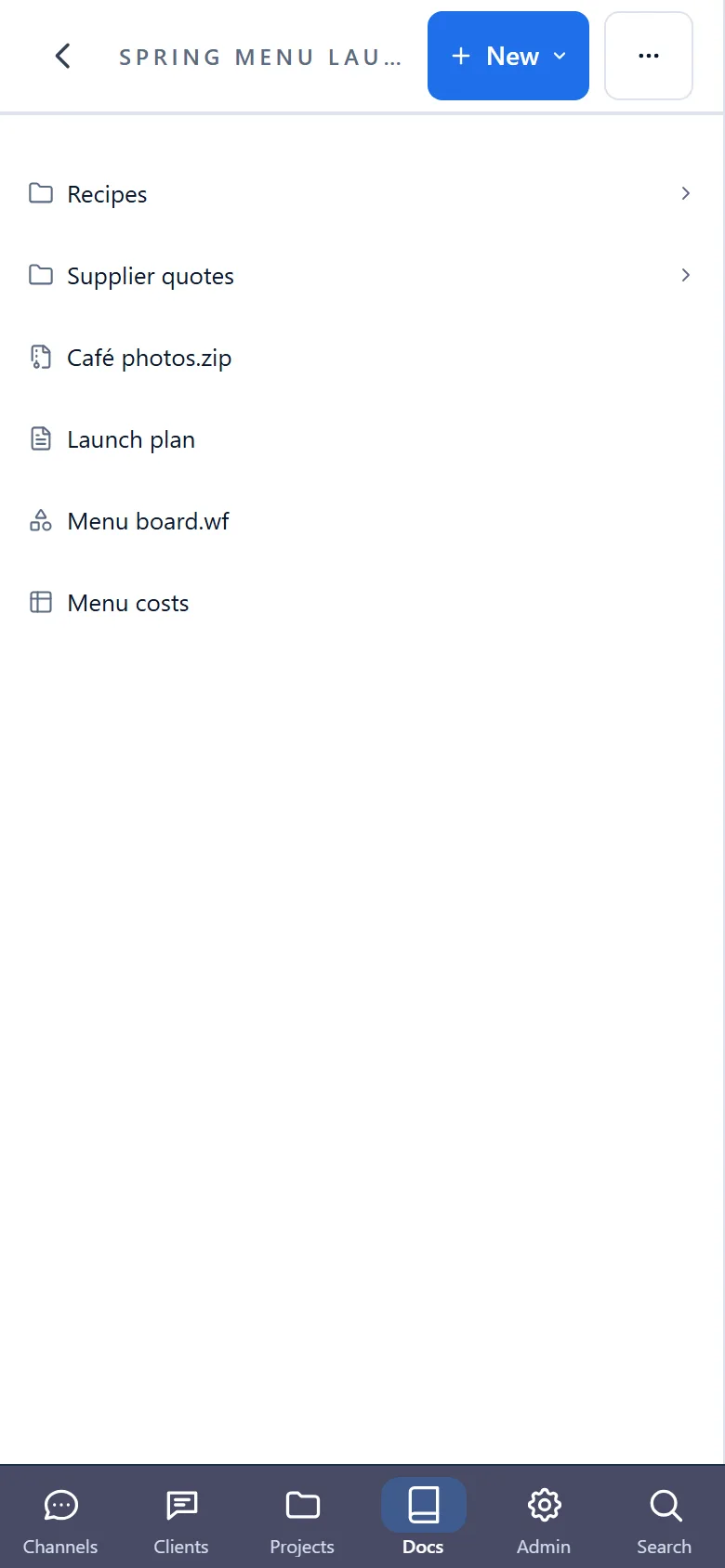
A project’s Docs
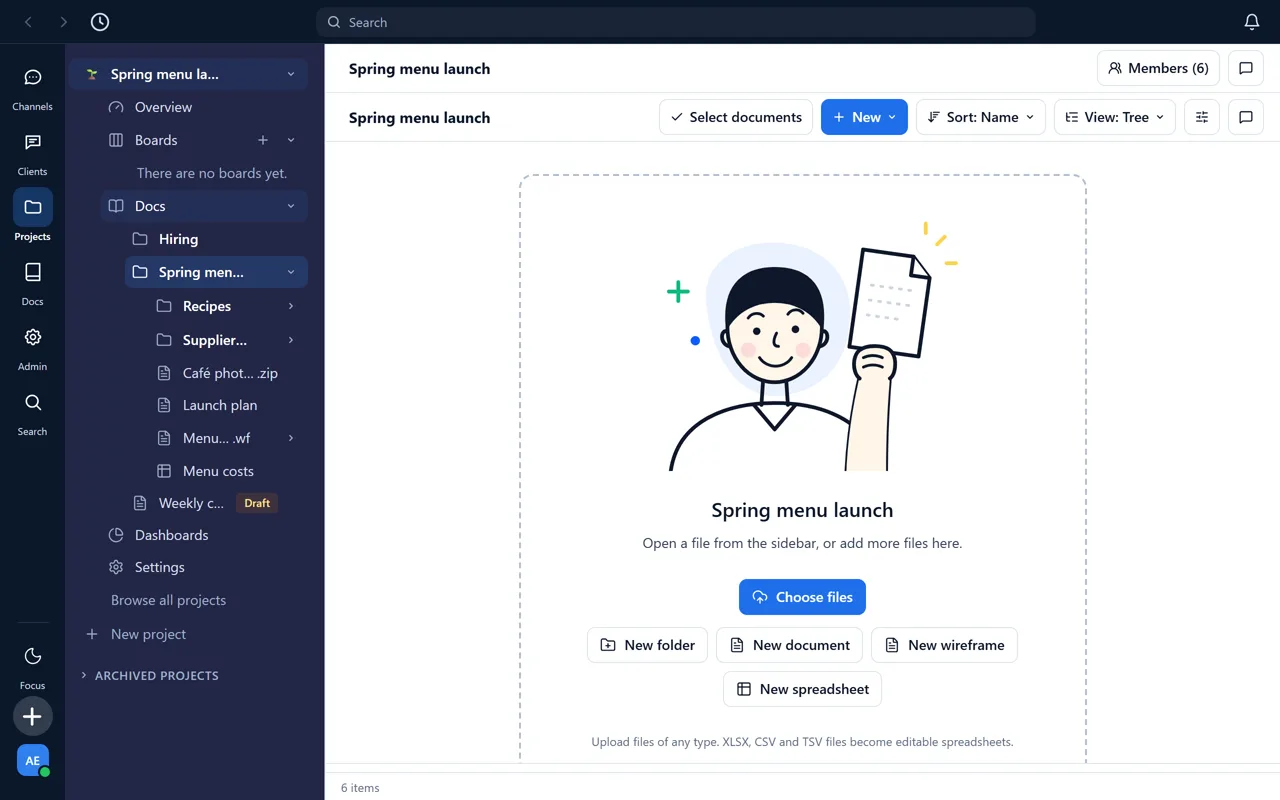
Every project has its own folder of documents, shown in the project under Docs and in Documents under Projects. It is the same folder in both places. Everyone in the project can read and write in it, and so can the agents working in the project. Tables, at the top of it, lists the tables that belong to the project.
Research with DeepWater
Open Research beside the message box in a conversation or reply thread, or under Docs. If it is unavailable, follow the setup message; an organization owner or admin can enable it for the team.
- Enter your question and background, then plan with DeepWater. Reply to the planner to refine the chapters. Check its proposals before starting.
- Choose research depth, report detail and report language. Advanced settings cover search quality, source languages, recency and writing style. Depth controls research effort; report detail is not an exact word count. Changes are sent with your next reply or start.
- Choose a full report or summary only, then start. The research card updates in the conversation. Open a saved summary while the full report continues. Open the result in Documents to inspect citations, or download the report and sources.
- Cancellation requests a stop; wait for confirmation. Stopped research cannot resume. Retry import saves an existing result again; it does not repeat the research. If access has changed, follow the message to start new research.
- Your unstarted brief is private. Publishing on research.deepwater.live is off by default; enabling it makes the finished report public.
- In Report detail, Dissertation selects exhaustive chapters with extended composition and evidence review. It may take longer, with no fixed length. Research depth stays separate. Summary only skips the final report, including Dissertation. Let DeepWater choose releases both report detail choices to the planner.
Agents and documents
Agents use Documents the way people do, and never see more than they are allowed to: an agent reads a space only when the space’s visibility or settings let it in.
Ask an agent to read or write
In a conversation, ask an agent to find, read, summarize or write a document. It searches the documents it can read, opens them and answers from them. When it writes a new document, a window shows the text arriving as the agent writes it; press Hide to keep working while it finishes, or Stop — nothing is saved to cancel. When it is saved, Open document takes you to it.
Review what an agent changed
A document an agent drafted is marked Agent draft, and the folder’s toolbar shows Needs review with the number waiting. Open one and press Review changes to see what changed, Request changes to tell the agent in a comment, or Publish. Every edit an agent makes is a version, so you can always restore an earlier one.
See who is in a document
When others — people or agents — have the same document or spreadsheet open, their pictures appear at the top, and their place in the text is marked. Hover over a picture to see where they are.
Tell an agent when a document changes
An agent can review a project’s documents each time someone saves them — checking a contract, updating a summary or telling a channel what changed.
- In a project’s Docs, or in a space everyone in the organization can see, right-click a folder, document or file and choose Tell an agent when this changes….
- Choose the agent and the channel where it reports.
- Choose what wakes it: documents, files or both, on Every save or only on A publish.
- Set the Quiet window: how long the agent waits after the first save, so a burst of edits becomes one review.
- Write the agent’s Instructions and save.
The document then shows Sent to the agent for review, and Reviewed by it once it has looked; Open review thread in its menu opens the conversation. You pause or change it in Admin → Automations. The agent never wakes on its own edits, and spreadsheets do not wake it.
Keep a copy on your computer
With the Nessie Computer app, a folder on your own computer can hold a copy of your team’s documents that stays in step both ways. See Sync documents to your computer.
What the words mean
- Draft — not published yet. Search finds it once it is published.
- Agent draft — an agent wrote or changed it, and a person has not reviewed it yet.
- Needs review — agent drafts in this folder that are waiting for you.
- Searchable — search can find it. Indexing… means it is being read; Not indexed says why it cannot be found.
- Can view / Can edit — what someone you shared with may do.
- Synced to — a copy of these documents is kept on a computer.
Good to know
- Documents belong to one team. Nothing from another team appears here, for organization owners and admins either.
- A deleted document cannot be restored. An archived one is gone from its folder, but its versions are kept.
- Agents follow the same access as people. An agent that is not allowed into a space cannot read what is in it, whoever asks.
- Connected AI apps such as ChatGPT and Claude can read and edit your documents as you. See Connect ChatGPT and Claude.