 nessie
Spreadsheets
Create, import, edit and export spreadsheets that people and agents work in at the same time.
Spreadsheets in Nessie live in Documents, next to everything else your team writes. Several people and agents can work in the same spreadsheet at once, every change is live, and versions are taken for you so a mistake is never final.
Where to find it
- Open Docs in the left-hand rail, go to a folder and open a spreadsheet. Spreadsheets have a grid icon.
- In a project, open Docs in the project menu.
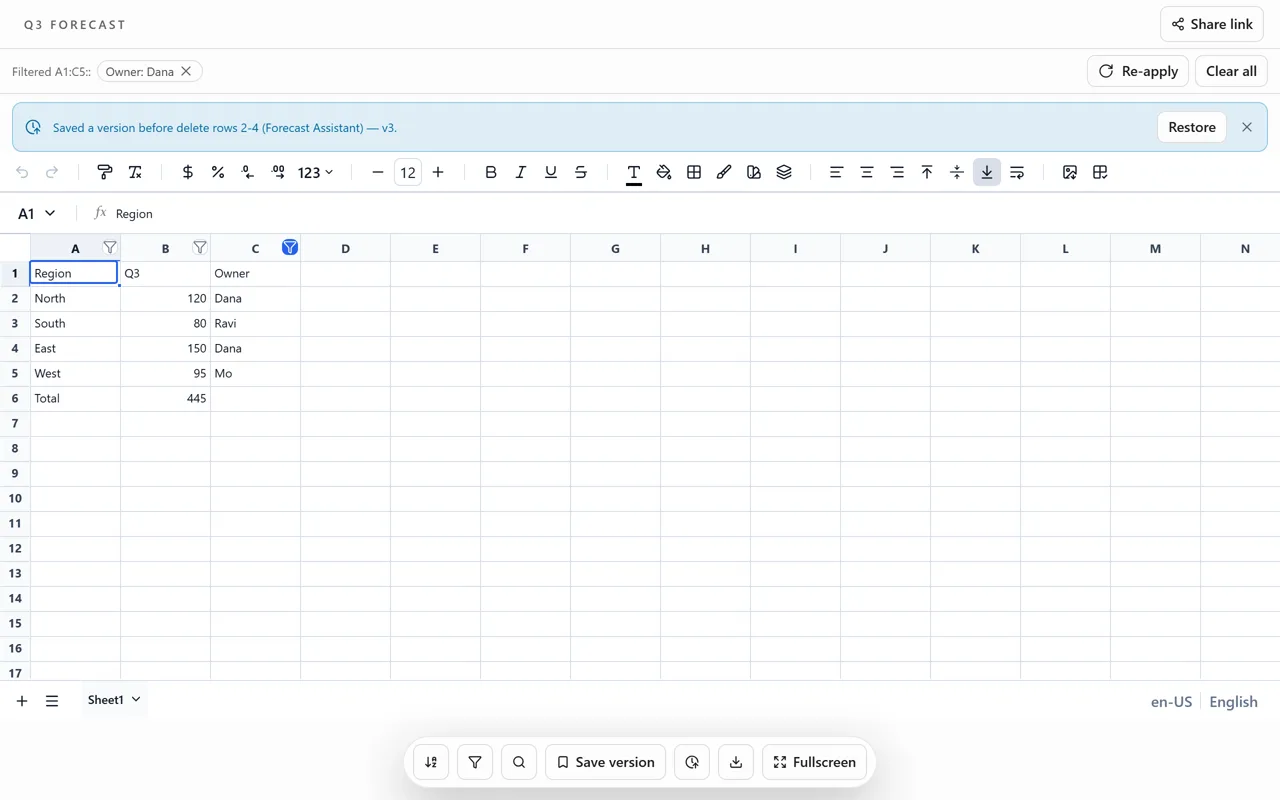
- The bar at the bottom of an open spreadsheet holds its actions: sort, filter, find, Save version, History, Export and Fullscreen.
Create a spreadsheet
- Open the folder where it should go.
- Press New → Spreadsheet.
- Type a Title and press Create. The empty grid opens.
Bring in an Excel or CSV file
- Open the folder and choose New → Upload…, or drag the file onto the folder.
- Choose an .xlsx, .csv or .tsv file. It becomes a spreadsheet you can edit here.
- Read the note when the import finishes: Imported with nothing dropped., or a list of anything this version cannot carry.
Old .xls files cannot be imported. Open them in Excel, save them as .xlsx and upload that.
Work in the grid
- Formulas and formatting. Formulas, number formats, fonts, colors, borders, frozen rows and columns, and several sheets in one spreadsheet all work. Format shows or hides the formatting toolbar.
- Sort. Select a range and press Sort…. Sort by one or more columns, and tick Data has header row to keep the headings at the top.
- Filter. Filter adds a filter to each column. Filter by the values you tick, or by a condition such as Greater than or Text contains. The strip above the grid lists the filters in use; Clear all removes them.
- Find & replace. Search this sheet, all sheets or a range, with options to match case, match whole cells, search inside formulas or use regular expressions.
- Fullscreen. Fills the window with the grid.
Work in it together
Everyone with the spreadsheet open sees each other’s changes as they happen, and sees who is in it at the top. If your connection drops, you can keep typing: your edits wait and are sent when you are back online.
Versions and going back
A spreadsheet has no draft and no Publish: what you type is saved straight away. Versions are your safety net.
- Save version saves a named version you can come back to.
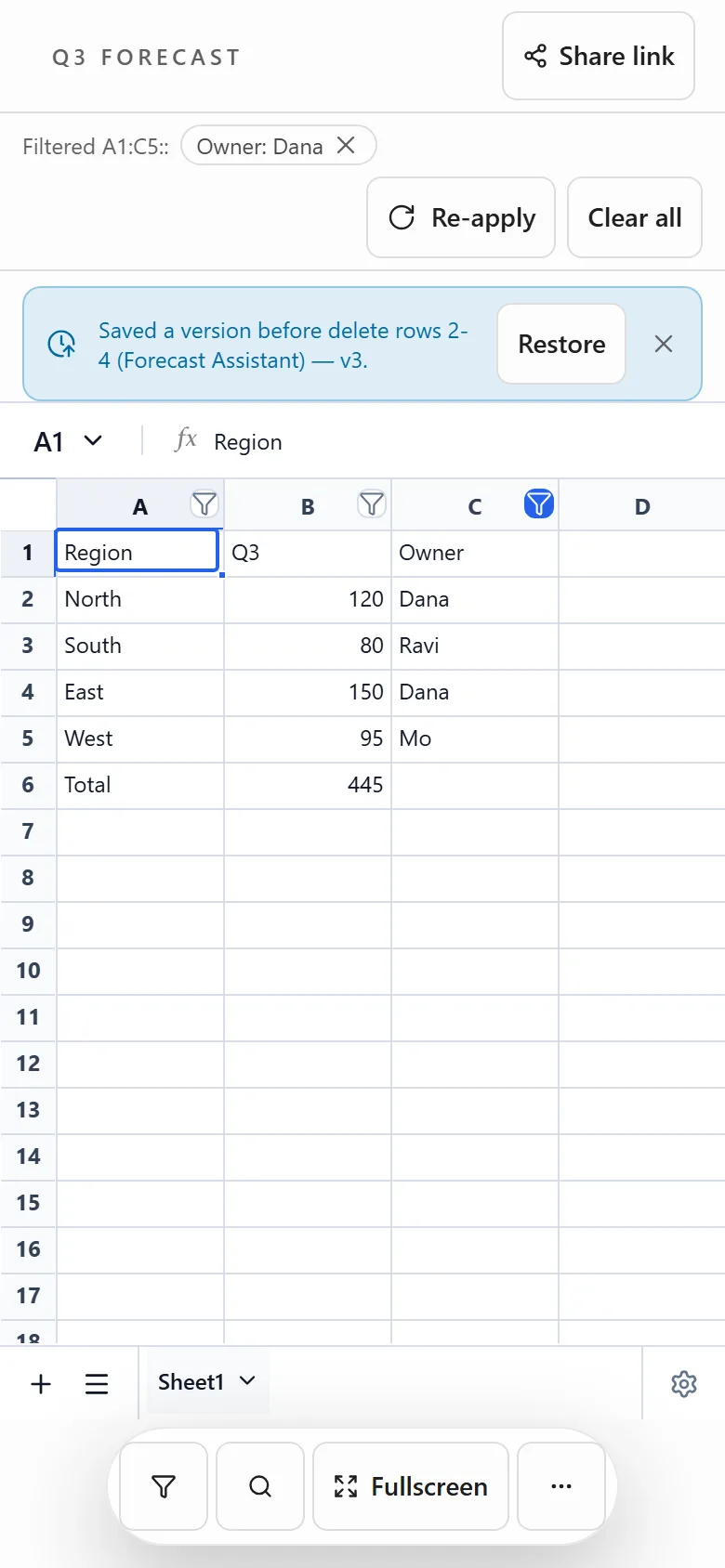
- Nessie also takes a version by itself before anything destructive, such as deleting rows, after a few quiet minutes, and every 200 edits. A banner names what happened and who did it, with Restore beside it.
- History lists the versions. Download any of them as .xlsx, or restore one; the current state is saved as a version first, so restoring never loses anything.
Download it
- Press Export.
- Choose Excel workbook (.xlsx) — every sheet, or CSV (.csv) — one sheet, values as displayed and the sheet.
- Press Download.
Rows a filter hides stay hidden in the file, but the filter itself is not saved.
Agents in spreadsheets
Ask an agent in a conversation to fill in, tidy or check a spreadsheet. It works in the same live spreadsheet you have open, so you watch the cells change. An agent’s edits are not held for approval: the automatic versions are what let you undo them, and the banner tells you which agent did what.
Good to know
- Merged cells from an imported file are kept in the file but not shown as merged. Data validation, cell comments, charts, images and pivot tables are not supported yet.
- A spreadsheet follows the access of the folder it is in, like any other document. See Who can see what.
- A change to a spreadsheet does not wake an agent that watches the folder for changes.