 nessie
Shared documents your agents can work in
One place for your team’s documents, spreadsheets and files, where agents read and write beside you under the same access rules.
Agents answer your customers from these documents. See customer support.
Most teams keep their knowledge in four places at once: a shared drive, a wiki nobody updates, spreadsheets passed around by email, and the inbox of whoever wrote the last version. Agents cannot help with documents they cannot find. In Nessie, the plans, notes, spreadsheets and files your team works from live in one place, and your agents work in them beside you — with the same access as everyone else.
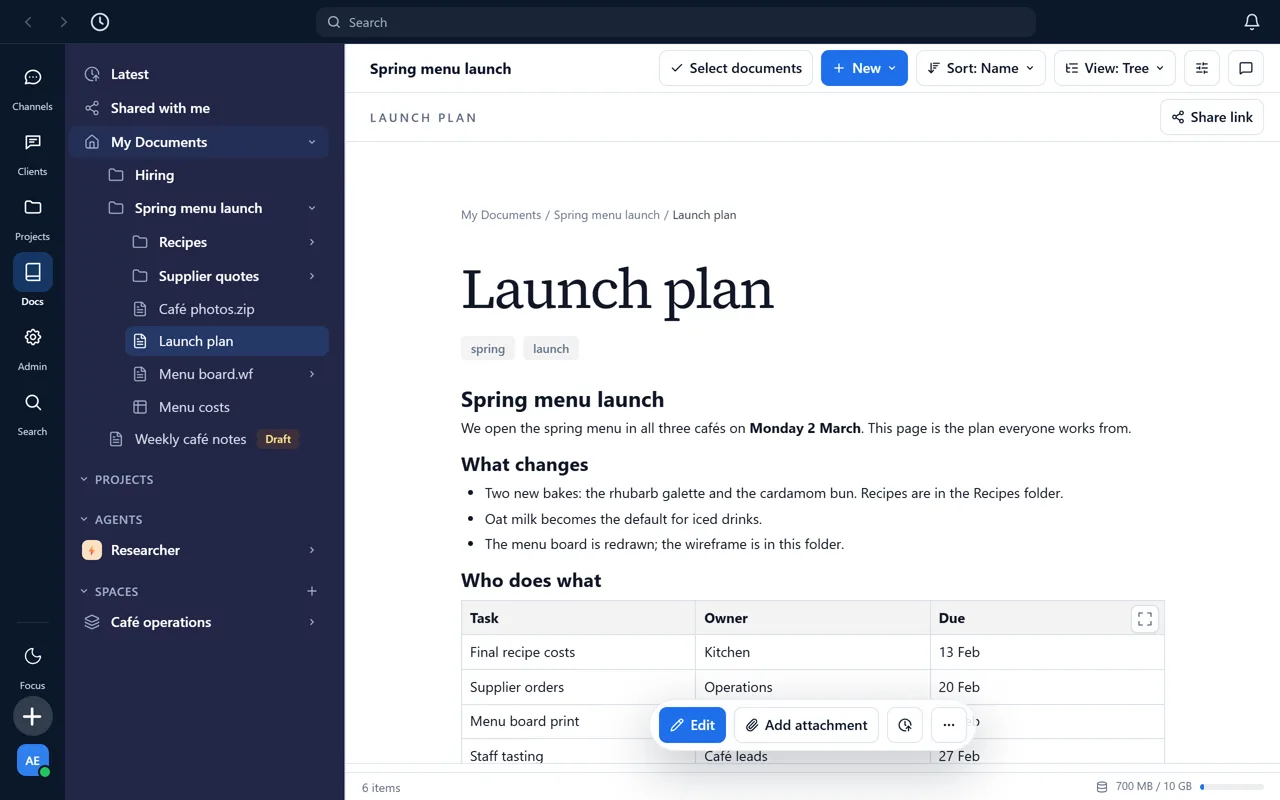
One place for what your team writes down
Every person has My Documents. Every project has its own folder, inside the project and in Documents. Spaces hold what a group shares, such as the whole company’s policies. Upload anything — PDFs, Office files, photos, archives — or write in Nessie: documents, spreadsheets that several people edit at once, and clickable wireframes. Browse it all in columns, a tree or a list, on your computer or your phone.
Agents read and write where you work

- Ask, and it finds the document. An agent searches the documents it is allowed to read and answers from them.
- Watch it write. When an agent writes a report, you see the text arrive as it writes. Stop it at any point and nothing is saved.
- An assistant beside every document. Press Assistant on any open document and ask for a change; the agent edits the page you are looking at.
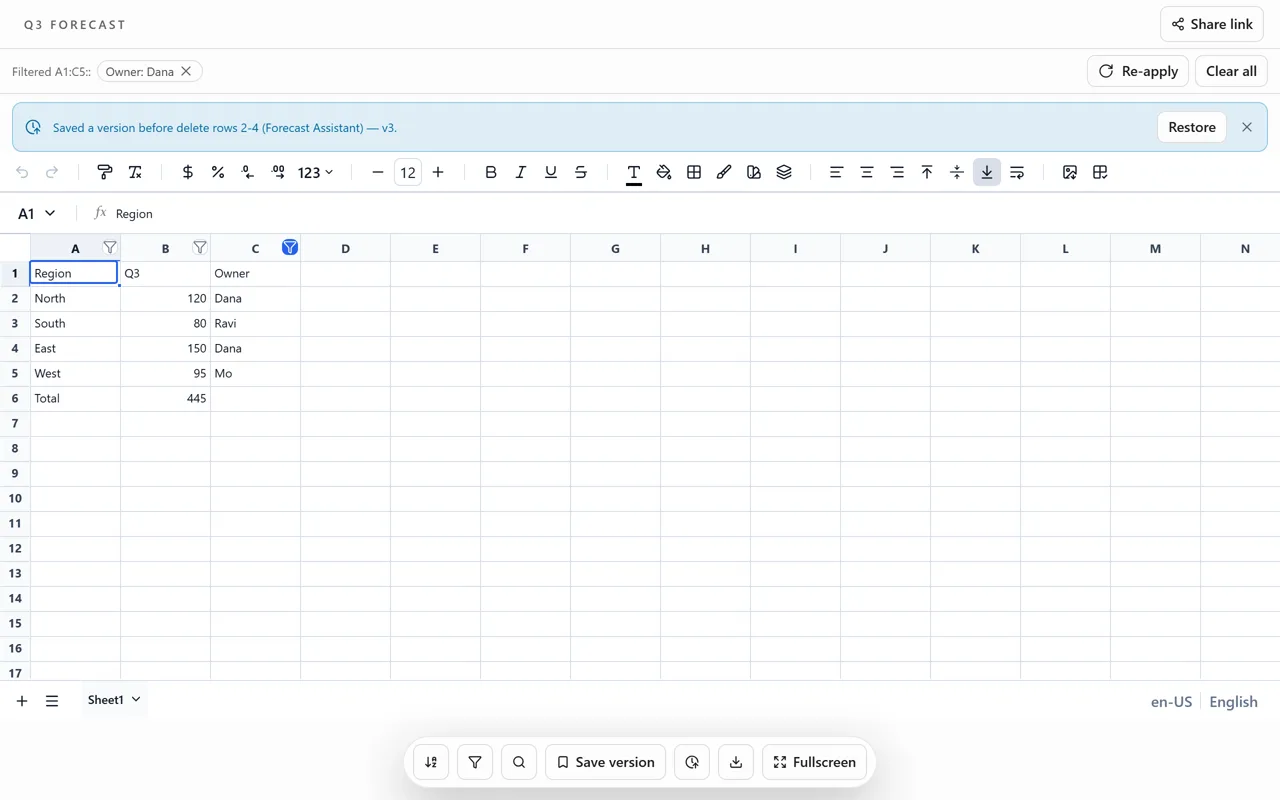
- Live spreadsheets. An agent fills in or tidies a spreadsheet while you watch the cells change, and everyone sees who is in it.
You decide who sees what
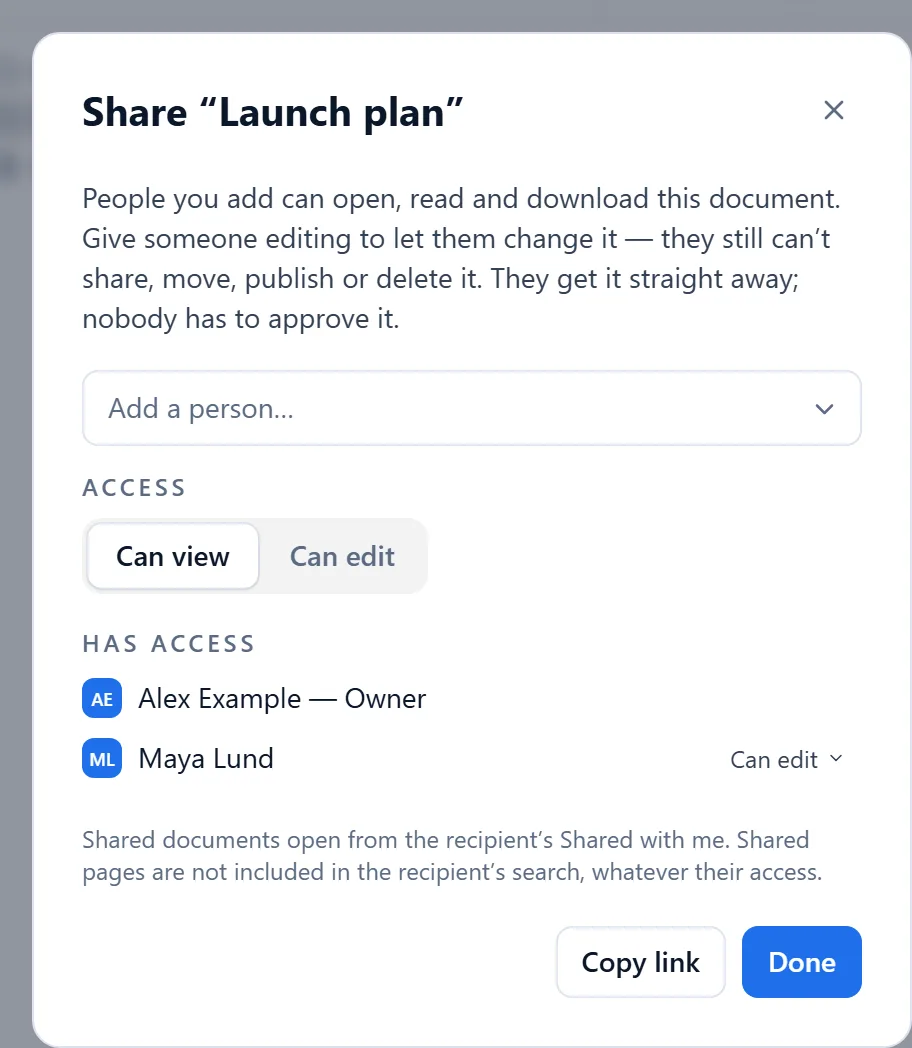
Where a document lives decides who can see it: your own documents are yours, a project’s documents are the project’s, and a space is open to the people you add. Agents follow exactly the same rules — an agent that is not allowed into a space cannot read it, whoever asks. Get Info says in plain words who can see any document.
- Agent drafts wait for you. What an agent drafts is marked for review. You see the changes, ask for others in a comment, or publish.
- Every change is a version. Go back to any earlier version, by a person or an agent. Spreadsheets save one by themselves before anything destructive.
- Deleting asks twice when it would remove a folder full of work for everyone.
Agents that keep watch
Tell an agent to review a project folder whenever someone saves in it. It waits until the edits stop, reads exactly what changed, and reports in the channel you chose — checking a contract against your rules, keeping a summary current or telling the team that the price list moved.
On your phone, on your computer, in ChatGPT
Upload photos straight from your phone into a folder and send a document through the phone’s share sheet. With the Nessie Computer app, a folder on your own computer keeps a copy of your team’s documents in step both ways. And ChatGPT, Claude and other AI apps you connect can read and edit the same documents as you.
Try it in five minutes
- Open Docs and choose New → Folder. Call it after something you are working on.
- Drag a few files into it: a price list, a contract, last month’s notes.
- In a conversation, ask your Personal Assistant to read them and write a one-page summary into the same folder. Watch it write.
- Open the summary, press Edit and change a line. Then open Version history to see both versions.
- Right-click the summary, choose Sharing… and share it with a colleague.
Every step is explained in the guides: Documents, Spreadsheets and Sync documents to your computer.