 nessie
Work alongside an agent’s browser
Watch an agent’s browser from the conversation, keep it in a window of its own, and take over whenever you need to.
When an agent uses a browser — to book, order, post or look something up on a website — you can watch every step from the conversation, keep the browser in a window of its own while you do something else, and take over at any moment. The agent waits while you have control and carries on when you hand it back.
Where to find it
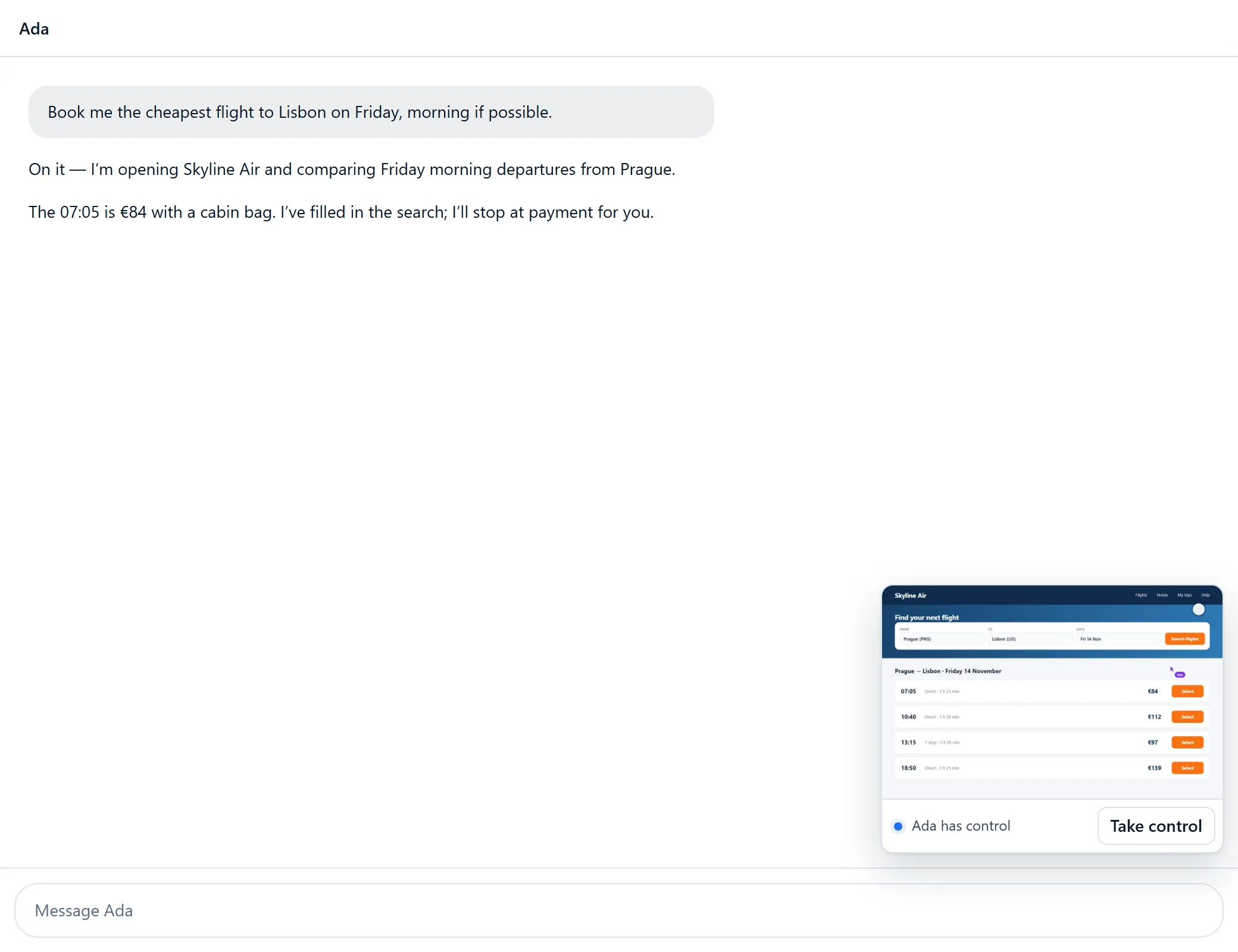
- In the conversation. While the agent uses its browser, a live picture of it sits in the bottom-right corner of the conversation, above the message box.
- The Browser column. Press Browser in the rail on the right of a conversation with the agent. On a phone, Browser is in the conversation’s header.
- Your own browser. Open your conversation with yourself and press Browser. This is where you sign in to the accounts your agents use.
- Who may use a browser. Open the agent, then Access, and find the Browser switch under Cloud browser.
Before you start
- A Nessie instance superuser sets up the shared Browserbase account under Super users → Cloud browsers. You do not need an API key. Check your prepaid balance in Billing. Browser time is billed per started minute at the price shown in browser settings. Nessie pays the fixed monthly subscription.
- If the browser says billing needs attention, choose Open Billing or contact your organization administrator.
- Switch on Browser on the agent’s Access tab. An agent without it never opens a browser.
- Sign in once to the accounts the agent should use, as described under Sign-ins and passwords.
Watch it work
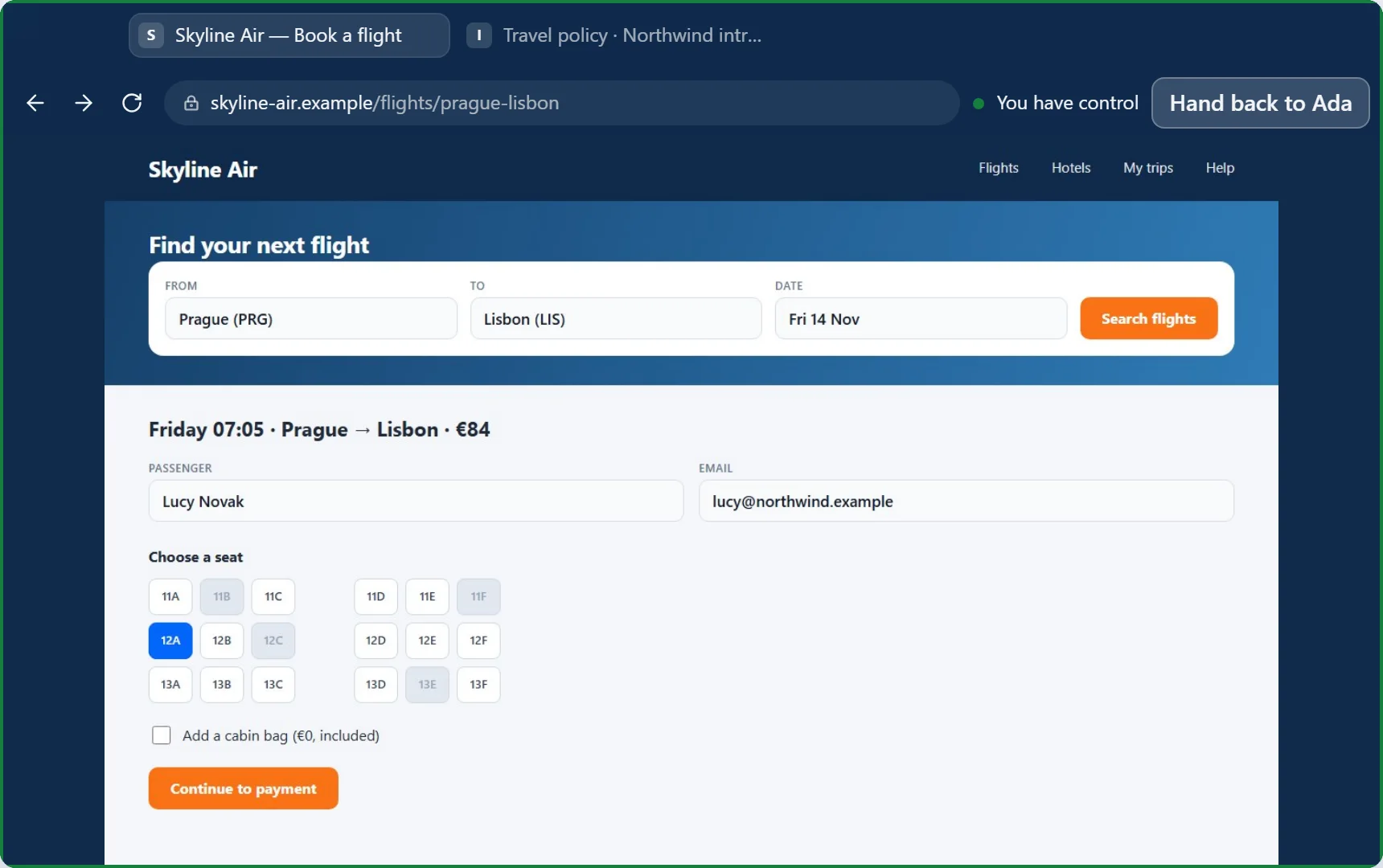
The picture in the corner is the agent’s browser, live. Under it, one line says who has control — Ada has control while the agent works — with a Take control button beside it. Press the picture to open the browser in the Browser column, where it is larger.
Hide it, minimize it or pop it out
Point at the small dot in the picture’s top-right corner and it opens into three buttons:
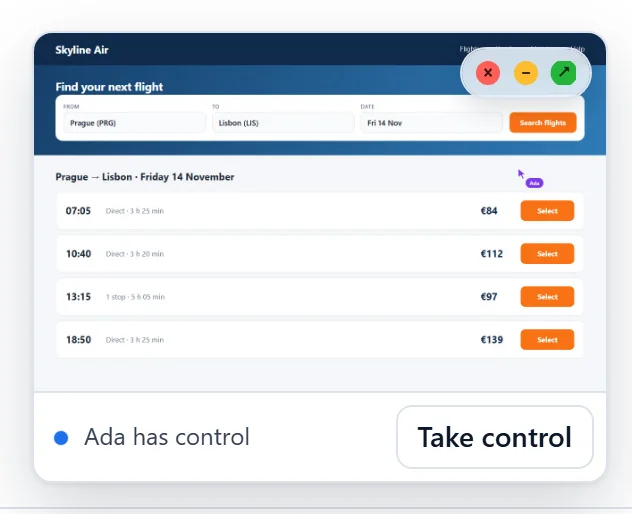
- Red — Hide preview. Hides the picture for this browser. The agent carries on, and the next browser it opens appears again. Press Browser in the rail to see this one.
- Amber — Minimize preview. Folds the picture into a small pill in the same corner. Press the pill to bring the picture back.
- Green — Open in its own window. Moves the browser into a window you can put anywhere on your screen.
Keep it in a window of its own
The window stays above your other windows, so you can keep watching while you work in another app. In Nessie Desktop it is a window of the app; in Chrome and Edge it is the browser’s own picture-in-picture window. Safari and Firefox cannot make one, so there you use the Browser column. While the window is open, the picture in the corner steps aside; it comes back when you close the window.
What appears at each size
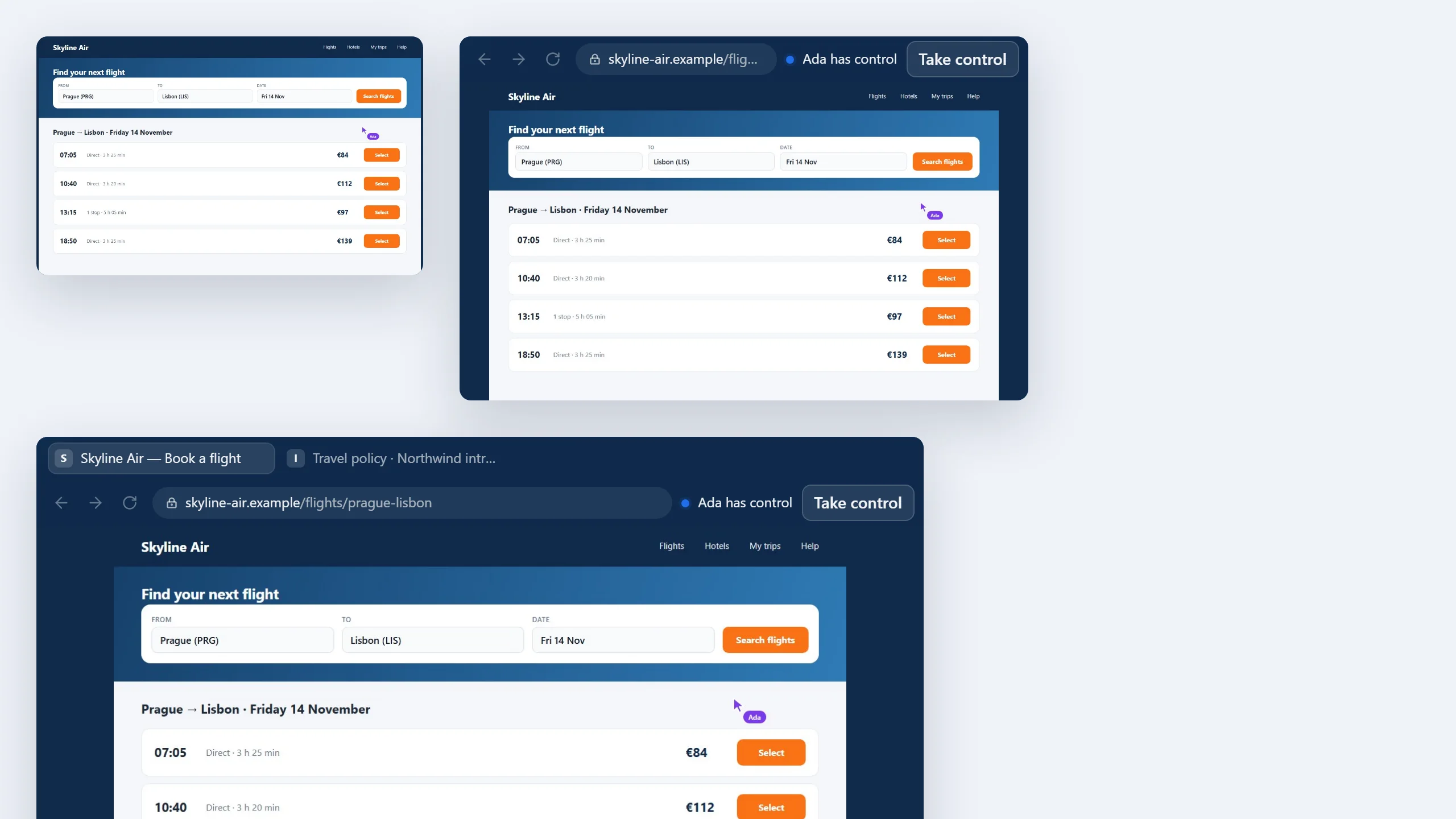
- Small: the page alone. Point at it to see who has control and the Take control button.
- Wider: Back, Forward, Reload, the page’s address and who has control.
- Larger: the agent’s tabs along the top as well. The bar takes the color of the page it shows.
Take control and hand back
- Press Take control — on the picture in the corner, in the Browser column or in the window. From the corner, the browser opens full screen.
- The line now says You have control, and a green outline round the window shows the page is yours. Click, scroll and type as you would in your own browser; a larger window also gives you the address, the tabs, and Back, Forward and Reload.
- The agent waits: whatever it tries in the browser is refused until you hand back. It still reads the conversation, so tell it what you changed.
- Press Hand back to Ada. The agent carries on from the page as you left it.
If the line says Someone else has control, another person is using the browser. Take control stays grayed out until they hand back.
Sign-ins and passwords
- Sign in once. Open your conversation with yourself, press Browser, choose Team and sign in to the account the way you always do. Nessie asks you to confirm that the sign-in is shared with the whole team. From then on, agents with browser access work in that account.
- Personal stays personal. Choose Personal for your own accounts. They are used only in your private conversations with your own agents.
- Passwords stay with people. When a page needs a password or a code, the agent asks you for it with a card in the conversation. What you type goes straight into the field on that page; the agent never sees it, and it is not kept in the conversation.
What the words mean
Ada stands for the agent’s name.
- Ada has control
- The agent is working in the browser. You can watch, or take control.
- You have control
- You are using the browser. The agent waits until you hand back.
- You have control in another window
- You took control in another window or tab. Take control here moves it to this one.
- Someone else has control
- Another person is using the browser. You can watch until they hand back.
- No one has control
- The browser is open and nobody is using it.
- View only
- You can watch this browser but not use it; only its private owner can.
- Browser closed
- The agent has finished with the browser. A window of its own closes by itself a moment later.
Good to know
- The picture in the corner updates every second and a half; the Browser column and a window of its own update more often.
- The picture in the corner only watches. If you close the window you were working in, your control ends by itself and the agent can carry on.
- On a phone, or when the conversation is very narrow, there is no picture in the corner; use Browser in the conversation’s header.
- Screenshots and files the agent downloads are saved in Documents, where your team can see them.
- Nessie Browser, the browser built into Nessie on your own computer, already opens as a window of its own. It does not show a picture in the conversation yet.