 nessie
People in your team
See who is in your team, invite someone new and manage everyone in the organization.
People shows who is in the team you are working in. From there you invite someone new and follow invitations that are still waiting. Organization owners and admins also manage everyone in the organization on the same page.
Where to find it
- Admin in the left rail → People.
- Admin → Overview: when invitations are waiting, their row opens People on Pending invitations.
The page always shows the team you are working in. To see another team’s people, switch to that team with the team switcher and open People again.
See who is in your team
Members lists everyone in the team with their email address and their role in the team.
- Press a person to open them.
- Change their Role, or press Remove from team. They leave this team only; their other teams are not affected.
You get these controls only when you are allowed to change the team’s members.
Invite someone
- Press Invite people.
- Choose From your organization and search for a name, or choose Invite by email and enter the address.
- Pick the person, or press Send invitation. Someone already in your organization joins the team straight away. Someone new gets an email with a link to join.
An invitation stays on Pending invitations until it is accepted. Open it there to press Resend or Cancel invitation.
A new person needs a paid seat. See Seats and invitations.
Manage everyone in the organization
Organization owners and admins get one more tab, Everyone in the organization. It lists every person with their organization role and the teams they are in.
- Open Everyone in the organization and press a person.
- Change their Organization role, or choose their teams under Team access.
- Press Deactivate in organization to pause their access to every team. You can reactivate them later.
For owners and admins, Pending invitations lists the invitations of every team in the organization, each with its team’s name.
Show inactive people
People whose access is paused are left out of the lists. To see them, turn on Show inactive at the end of the tab row, on Members or Everyone in the organization. The list then shows the deactivated people in place of the active ones.
To give someone their access back, an owner or admin turns the switch on, opens the person on Everyone in the organization and presses Reactivate in organization.
See who is free and schedule a meeting
Calendar shows your team's time on one page: a row for each person, with the hours of the day across. A colored block is time that person is busy. Hatched time is time they are away or not working. A green block in the first row, Free for all, is time when everyone on screen is working and free.
Each person chooses what the team sees of their calendar: Titles, places and guests, Titles and places, Only busy or Nothing. Nobody can change that choice for someone else, an owner or admin included. Working hours and time off always show.
- Open Channels and press Overview under Calendars. Under Your calendar, press Connect Google Calendar or Connect Outlook so your own time shows too. Your account is then listed under Calendars: press it to open your own week.
- Choose Day or Week. Press Everyone to pick the people to show, or press a name to see that person's week.
- Check Your working hours. They start as Monday to Friday, 9:00 AM to 5:00 PM: change the times, or untick a day you do not work. Add vacations under Time off.
- Choose how long the meeting is, 30 min, 1 h or 2 h, then press a green block in Free for all or press Schedule a meeting.
- Give the meeting a title, check the guests and press Create and invite. The meeting goes on your own calendar, and your calendar sends the invitations.
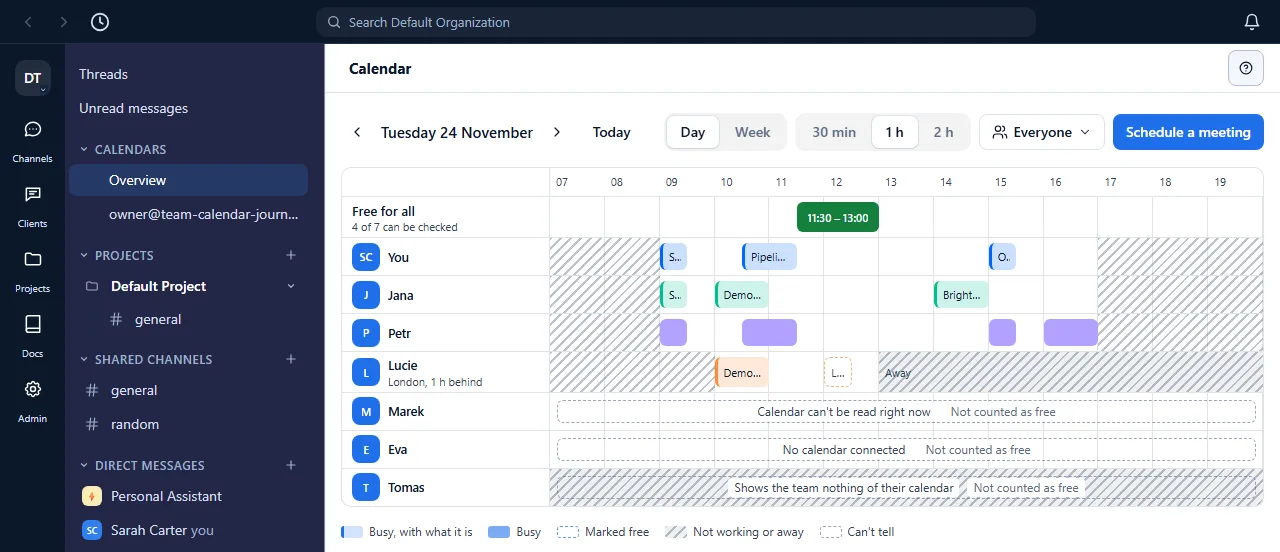
A row that says No calendar connected, Calendar can't be read right now or Shows the team nothing of their calendar is never counted as free. You can still invite that person.
Agents see the team's calendar only as far as each person shows it, and only for the person they are working for. An agent asks before it sends invitations.
Keep a calendar in Nessie
Some things are on nobody’s Google or Outlook calendar: company holidays, an on-call schedule, a meeting room, a launch. Keep them on a calendar in Nessie. A Team calendar is for everyone in the team, and a Project calendar is for the people of one project.
An event takes time only from the people it names. Tick Everyone in the team for a company holiday, or tick nobody for a date that is only a reminder. Nothing is sent to anybody.
- On Calendar, scroll to Calendars kept in Nessie. Type a name under New calendar, choose The whole team or a project, and press Create calendar.
- The calendar appears as a row above the people. Press the plus beside its name to add an event. It is also listed under Calendars in the menu: press it there to see that calendar alone.
- Give the event a title and a time, tick the people it takes time from, and press Save event. Tick They are away for it, such as a holiday to show those people as away.
- Press an event to change or remove it. Beside a calendar’s name, Rename gives it a new name and Remove removes it with its events.
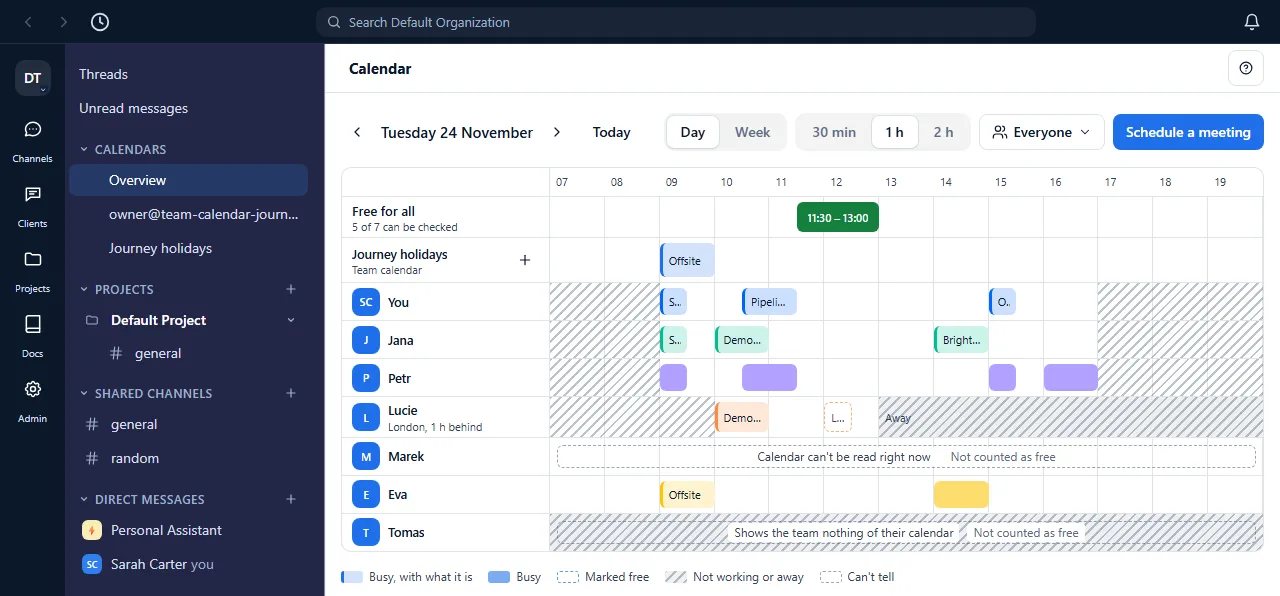
No Google or Outlook calendar? Press Keep your calendar in Nessie. Your team then sees when you are busy, as far as you choose, and you count in Free for all.
Supervised members
A team’s admins can mark an ordinary member as supervised. The team’s admins can then read that member’s conversations with agents, word for word, without taking part. The member is told: each of those conversations shows Admins of this team can read this conversation.
Only conversations with an agent in them can be read: the member’s own conversations with agents, and groups an agent is in. Conversations between people only stay private. In a group that gained an agent later, only what was said after the agent joined can be read. Conversations with their own Personal Assistant are not included.
Mark a member supervised
- On Members, press the person.
- Under Supervision, turn on Supervised.
- Choose their Age if you want to. Agents use it to pitch their answers.
On a Nessie your organization hosts without a sign-in service, choose Supervision from the menu on the person’s row instead.
Only the team’s admins can do this, and never for themselves. Owners and admins cannot be supervised.
Invite someone as a supervised member
- Press Invite people and choose Invite by email.
- Enter the address, tick Invite as a supervised member and choose their age if you want to.
- Press Send invitation.
They are supervised from the moment they join. If Nessie cannot send that person an invitation, for example because they can already join without one, add them first and then mark them supervised.
Read their conversations
- On Members, press the person, then Read conversations.
- Choose a conversation under Conversations with agents.
You only read. You cannot write or answer anything there, and you never appear in the conversation. What agents remembered lists what agents learned in these conversations.
Not checked on a conversation means Nessie could not check its latest replies for anything you should know. Read it yourself.
The member’s newest messages appear once Nessie has checked the agent’s reply, or after two minutes when no agent answers.
What a supervised member cannot do
- Add, remove or change agents.
- Connect an app or an account.
- Invite or remove people.
- Answer an approval, or press a card button that acts for them, such as Send on an email draft.
- Change supervision, guidance or hours.
- Show or copy the value of an access key.
Agents working for a supervised member cannot use email, calls, social media, Clients, newsletters, a browser or connected apps, and cannot design agents. They can still read the member’s own calendar and the team’s week.
Guidance, hours and agents for one member
In the same window, below Supervision, a team’s admins shape how agents work for one member. Guidance and hours are for any ordinary member. Choosing their agents is for supervised members.
Guidance
Guidance is instructions in your own words that agents follow when they work for this member, such as “Give hints, not answers.” A line is for every agent or for one.
- Under Guidance, write the line.
- Under For, choose Every agent or one agent.
- Press Add.
For every supervised member holds lines that apply to all the team’s supervised members at once.
The member can see that there is guidance, but not what it says. A change applies from the next answer an agent starts. You can also ask your Personal Assistant to add a line for a member.
Hours
- Under Hours, turn on Only answer at set times.
- Choose the Days, the times From and Until, and the Time zone.
Outside those times the member’s agents do not answer, and nothing is charged. When the member writes, the agent replies once to say when it is back. Hours that end before they start run past midnight.
Agents they may use
For a supervised member, Agents they may use lists the team’s agents. Tick the ones they may talk to. With none ticked, they can use every agent. Their own Personal Assistant is always available.
An agent that is not ticked is not offered to them and does not answer them, in a group conversation either.
Alerts about a supervised member
After each reply to a supervised member, Nessie judges whether the conversation has turned to something the team’s admins should know. If it has, each admin gets an entry in their bell: Something to know about the member, with one line saying why. It opens the conversation. The member is never alerted. Alerts come only from conversations the admins can read.
- Open your account menu → Your settings → Notifications.
- Under Supervised members, choose the kinds of alert you want.
- Safety — someone may be in danger, hurt or treated badly, or is asked for what should not be asked of them. Always on.
- Distress — they are deeply unhappy or frightened, and it is not passing.
- Your guidance — something the guidance you wrote says should come to you.
- Getting round a rule — they keep trying to get round a rule after being told it stands.
Until you choose, you get Safety, Distress and Your guidance. The link Choose which alerts you get. beside a member’s conversations opens the same settings. Muted notifications and quiet hours silence your devices, never the entry in your bell.
When a supervised member says an admin may be harming them
Sometimes the person a supervised member says is harming them is one of the team’s admins. Telling the admins could then put the member at risk. When Nessie judges that an admin may be the source of harm:
- Nobody in the team is alerted or told anything.
- The conversation is withheld from the team’s admins: it is no longer there when they read the member’s conversations.
- The conversation goes to a safeguarding reviewer at Nessie, from outside your organization.
The member’s own conversation does not change. No admin can switch this off.
Nessie is not an emergency service. If someone is in danger now, call the local emergency number.
What the words mean
- Members — the people in the team you are working in.
- Pending invitations — invitations nobody has accepted yet.
- Everyone in the organization — every person in every team. Owners and admins only.
- Show inactive — lists the deactivated people in place of the active ones.
- Deactivated — the person cannot use any team in the organization until they are reactivated.
- Owner, Admin, Member, Viewer — a person’s role, in the team or in the organization.
- Supervised — the team’s admins can read this member’s conversations with agents, and the member is told. Conversations with their own Personal Assistant are not included.
- Not checked — Nessie could not check a conversation’s latest replies for anything an admin should know.
Good to know
- Teams are separate. People shows one team at a time, and only owners and admins see the whole organization.
- Removing someone from a team does not remove them from the organization.
- The organization’s owner cannot be deactivated.
- Supervision belongs to one team. A member supervised in your team is not supervised in the organization’s other teams.
- If a supervised member becomes an owner or admin, nobody can read their conversations any more.